Last year, after I started geotagging my photos, I did a few visual art projects combining photography and GPS technology. I am fascinated by maps, how we imagine the world around us, how we communicated that world to others, etc.
A GPS receiver (including many smartphone apps) can record a GPS track — that is, a series of linked points recorded at regular intervals or distances as you move. Normally, these tracks are used for navigation — record where you have been so you can later retrace your route and thus find your way back home. These track files are also good for post-adventure analysis. Your can plot your speed, heading, elevation, etc. You can also use the point data in the track to geotag your photos so that you, and others, can see exactly where a particular photo was taken.
Beyond their practical uses, however, GPX tracks, when displayed as a line on a map, have an aesthetic value as well. They are a virtual mark on the land — the mark of an adventurer expressing some desire to explore. In this way they are not unlike the marks an artist makes on paper or canvas. Lines creating shapes, outlining objects, representing barriers overcome or avoided. Lines demarcating space and time. Tracings and recordings of life.
A Walk In The Park
After a long walk at Bowness Park last March, I overlaid photographs I had taken with the abstract and graphically rich tracings of my GPS tracks. Typically, one displays geo-located photos on a map — saying “this is where these photos were taken.”
But the map is not the terrain. The map is not the location.
Instead, I am displaying the map (in the form of the track overlay) on the photo. This gives the photo context. The image exists in concert with — because of — my movement across the land.
Photo Walking
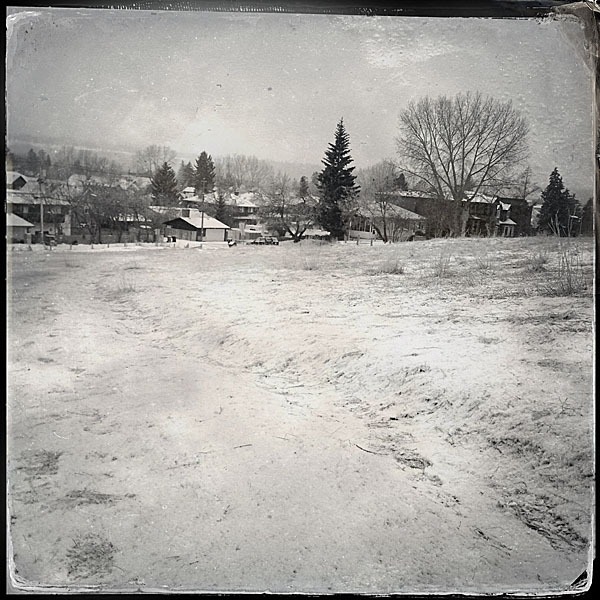
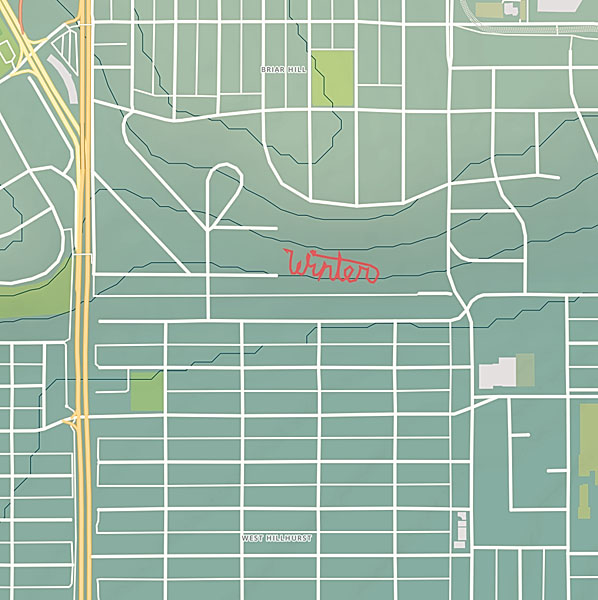
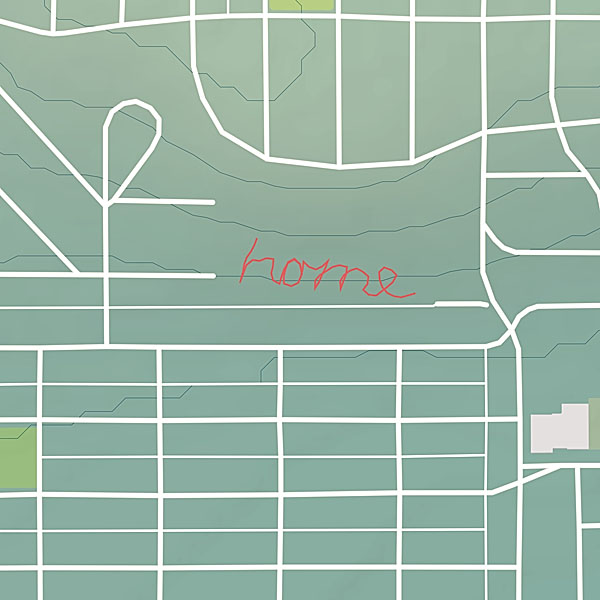
The other project I started, is a series of large scale conceptual drawings. By walking a path across the land tracing the shape of a word, I am making visible some thought, some meditative idea. The word — the path — is not visible to others even though it’s creation is a very concrete act. However, by capturing the path in the form of a GPS track, I am able to share the act with others. The track image, is combined with photos taking during the walk so the viewer can experience the original event.
I blame my father in-law. He keeps dissing the iPhone’s geotagging functions. Apparently, on his Android phone, it is easier to see where a photo was taken. Alas, this appears to be true.
On iOS, in the built-in Photos app you can choose Places and see all your photos on a map, but you can’t do the reverse (i.e., choose a photo and see it on a map). You have to install Apple’s iPhoto for iOS ($4.99CAD) to get the ability to click on a photo to see it on a map (see screenshot to the right).
Fathers, like customers, are always right.
The problem is, he got me interested in geotagging. Geotagging is something I have casually investigated before, but not something I got into seriously. I have become intrigued and after some intensive goofing around I spent the last week compiling what I now know about geotagging. Enjoy!
[toc]
How-to Geotag Photos
To paraphrase the clerk at my camera store, GPS tagging of photos is still in its infancy. While not really true (geotagging has been going on since the dawn of smartphones) geotagging falls under the category of “techy” at the moment. It should be more ubiquitous, but the technology is not as prevalent, or easy to use, as it should be. In the current state you have several geotagging options to explore.
Drag-and-drop Geotagging
The simplest, but perhaps the least inviting way to geotag is the drag-and-drop method. First, you need software that lets you drag photos onto a map (Flickr has this feature, as do Google’s Picasa and Apple’s iPhoto).
To geotag a photo, simply navigate the software’s map to the location where a photo was taken, drag the photo onto the map, and the software writes the geolocation data for that location into the photo. Do this for all your photos and you will be able to explore them on a map.
Flickr drag-and-drop geotagger
Their are two downsides to this method. One, it takes some time to do. Two, it is error prone. Many people (not me) are not very spatially aware and might have trouble remembering exactly where a photo was taken. Also, do you drag the photo onto the location where the photographer was standing (e.g., somewhere along the Avenue des Champs-Élysées in Paris), or the location of the photograph’s subject (e.g., the Arc de Triomphe)?
Additionally, if you use a photo site (such as Flickr) to geotag your photos, then your original photos (presumably backed up on your computer) will not be geotagged.
Smartphone Photography
Of course mobile phones and tablets almost all geotag by default. They have either built-in GPS receivers, use Wifi to mimic global position (WPS), or combine these two approaches. If you haven’t played around with your geotagged mobile photos then this is a good place for you to start exploring. Try using iPhoto’s Places feature.
GPS-equipped Cameras
This should be the future of geotagging. Every camera should have a built-in GPS receiver and Wifi. These microchips are cheap.
Currently, there are several dozen consumer-grade cameras with built-in GPS. The main concern with using built-in GPS seems to be deteriorated battery life.
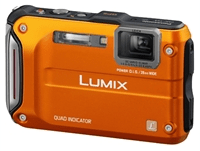
My wife has a Panasonic waterproof camera with GPS, but we never use that function for fear of depleting the camera’s battery. She uses the camera primarily on canoe trips and a battery recharge could be days, or even a week away.
Buil-in GPS is the simplest option though and is really the only viable option for the average consumer.
(If you use Eye-Fi Wifi-enabled SD cards you can take advantage of WPS geotagging, which in urban areas is going to be almost as accurate as GPS. Outside of urban areas, or away from any wireless access points, WPS geotagging will not work.)
Combination of Camera and External GPS Receiver
If your camera does not have a built-in GPS receiver then you can still geotag your photos with the help of an external GPS receiver (logger). This is more cumbersome than having built-in GPS, but more accurate than manually geotagging with the drag-and-drop method.
I’ll break down this method into two categories: using your GPS equipped cellphone as a logger, or using a stand-alone GPS receiver (i.e., a receiver that is not also a web browser, email client, and espresso maker).
Smartphone GPS Logger
I can quite easily do geotagging with my iPhone and my Wifi Canon PowerShot S110 via Canon’s CameraWindow iOS app. All I need to do is start the geo logging function in CameraWindow and then go shoot some photos. When done shooting, I stop geo logging, connect my iPhone and PowerShot S110 via Wifi, and tell CameraWindow to tag all the new photos on the camera. Done.
Canon’s Camera Window app for iOS, which works with their Wifi-capable cameras, has a major flaw — you cannot export your geo location log. You can only tag photos that are on your Canon camera by connecting it to the iPhone via Wifi after generating a log. I can’t, for example, use the CameraWindow app to tag photos from my EOS M.
GPSPhotoLinker GPS Data Viewer
Thankfully, there are other apps available that geo log and allow you to export your logs. I’ve been trying out Geotag Photos Pro. The app’s logger fits in the functional category — full featured but not pretty. (The same company’s off-line desktop Java app for marrying the log data with your photos blows chunks. Their on-line version of the app is even scarier. Avoid them.)
After you create your log, you need to do something with it. The workflow generally looks like this: log with your smartphone while you take some photos; export the log to your computer (usually via email); and, on your computer run the log and your photos through some software to automatically geotag your photos.
Most logging apps export logs in standard GPX (GPS eXchange) format so you can use them in whatever software you choose. Adobe Lightroom has a geotagging feature that supports GPX logs. I currently use Adobe Bridge and Adobe Camera Raw for my workflow, neither of which natively support geotagging. I did find a plug-in script for Bridge by photographer Yagor Korzh that accepts GPX logs as input. It is no frills, but it seems to work fine in the few tests I ran. However, on OS X, I’ve settled on GPSPhotoLinker as my third-party geotagging software.
Traveling, which I have been doing a lot of recently, plus photography, just screams for geotagging. I almost always have an iPhone and a camera with me wherever I go, so I would like this geotagging method to work for me.
Apps that use GPS for extended periods have a tendency to deplete your phone battery rather quickly. When I am travelling I just never know when I might be able to recharge, so phone battery conservation is a high-priority. Thus, I have not used this method extensively in the real world.
This method also requires that you remember to start and stop logging. It seems like a lot of work.
(Here is a quick travel tip: charge your iPhone faster with Apple’s larger and more powerful 12 watt USB power adaptor (the kind that comes with the iPad) rather than with the slower 5 watt iPhone-standard power adaptor. Make the most of those few minutes in the airport boarding lounge. Carry the larger adaptor and you’ll also be ready to save a fellow traveller with an iPad in need of juice.)
Stand-alone or Dedicated GPS Receiver/Logger
If your camera does not have built-in GPS and/or you do not want to use your smartphone as a GPS logger, then you have two other options: use a stand-along GPS receiver that can log tracks and export those logs to your computer (e.g., a Garment eTrex); or, buy a dedicated external GPS receiver that is designed to work directly or indirectly with your camera model.
If you already have a suitable stand-alone GPS receiver, start there.
Canon GP-E2 GPS Receiver
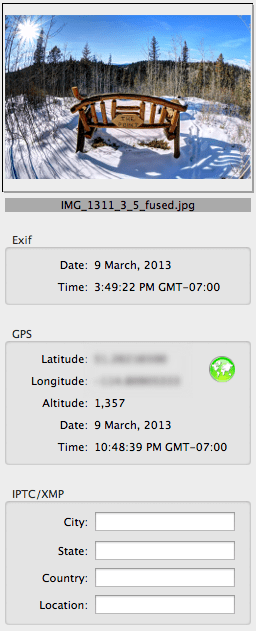
Preview.app GPS Info Pane illustrating the plethora of geotag data added by the Canon GP-E2
At the moment I do not have a Garmin, Magellan, or other GPS receiver. As a Canon user my first option is the Canon GP-E2 GPS Receiver. The GP-E2 is a hotshoe mountable GPS receiver that is specifically designed to work seemlessly with Canon’s current line-up of EOS cameras. Thankfully, that includes my EOS M.
With the GP-E2 mounted on the EOS-M, photos are tagged with latitude, longitude, and direction of shot (thanks to a digital compass) the moment each photo is written to the camera’s SD or CF card. The GP-E2 also has a log mode which periodically writes location data to its own memory.
GP-E2 battery longevity is essentially a non-issue. On a single AA battery it can log every 15 seconds for up to 39 hours. If I shot four hours a day, I could get 9 days out of a single Ni-MH rechargeable. 1, 5, 10, 15, or 30 second, and 1, 2, or 5 minute intervals are also available.
I won’t have to worry about daily logs filing up the device either. Using the default 15 second interval, 69 days worth of logs can be stored on the device. At longer intervals, up to 128 days worth of logs are kept. That is plenty of time to get back to the computer to backup the logs. When the device memory is full the oldest logs are deleted to free up space.
This all sounds great, but there are a few downsides to the GP-E2.
One, it is bulky. On professional or pro-consumer EOS bodies it won’t really be noticed, but it sticks out like a sore thumb on my EOS M, especially if I use the tiny EF-M 22mm pancake lens. Though, at only 81 grams, weight is not a problem. Also, it can be used off-camera by attaching via the DIGITAL ports with either the supplied 25 cm or 1.5m cables.
Two, it is expensive. At $350CAD, the price is as high as the GPS satellites it communicates with. For $259CAD I can get a great stand-alone Garmin GPS that has almost all the features of the GP-E2 and then some (more on this option in a minute).
Three, while tagging photos in-camera on the EOS is super simple, using the logs to tag images from non-EOS cameras is a bit of a pain, to say the least (again, more on that later on).
Other GPS Receivers
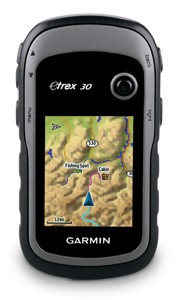
As I mentioned above, the Garmin eTrex-series is very enticing. I have investigated the eTrex 30. It is relatively compact, which makes it a good option for travelling. If I had one, I would also use it while backpacking, canoeing, and mountain biking.
As a GPS logger, a device like the Garmin eTrex 30, would work essentially the same as any of the smartphone apps available, with one exception. A stand-alone GPS receiver is going to have substantially better battery longevity — 25 hours on two standard AA batteries, according to Garmin.
Where Am I? (Pun Intended)
Yesterday, I decided I would not get the Canon GP-E2 or a Garmin eTrex. I decided I would play around with iOS loggers for a little while longer.
Today, I changed my mind. My credit card company thanks me, I’m sure.
After purchasing the GP-E2, I took it home and put it through its paces. Though happy with the final results, I had a frustrating time getting it to do all that I wanted. Rather than keep that suffering/knowledge to myself, I decided I would share so others might have an easier time of things. Beneficence or catharsis — you decide.
Canon GP-E2 GPS Receiver Hack-a-thon
For the price I paid for the GP-E2, I rationalized that it would have to be a fully-capable device. It had to do the following, or I would consider returning it:
tag images on my EOS camera while mounted on the hotshoe;
easily log tracks, and allow tagging of images from my other Canon cameras;
allow exporting of track logs for use in other software if I choose not to use the Canon’s MapUtility;
and finally, allow tagging of photos from non-Canon cameras (contrary to the marketing material).
Geotagging Is For Techies
Canon MapUtility GPS Track
I’m a pretty sophisticated guy. I was a CTO and VP of Technology in a former life. At least I think I know computers and gadgets. However, it took several hours of Googling and goofing around before I was able to do all the things I wanted with the GP-E2.
First, the Canon MapUtility that comes with the GP-E2 isn’t as bad as most reviewers would have you believe. (Heck, it is not as bad as most software Canon produce.)
There is a gap in the GP-E2 manual though — they don’t actually tell you how to connect the GPS unit to the computer. So, let’s start there (I assume you’ve installed the included MapUtility software already).
Loading GP-E2 Log Data Onto Your Computer
If you are using the log mode of your GP-E2 you need to get the log onto your computer:
First, plug a mini-USB cable (which Canon does not supply) from your computer into the DIGITAL port on the GP-E2.
Then, turn the GP-E2 mode switch to ON.
Next, launch MapUtility.
Finally, import your logs. In the upper left of the application window, select the “GPS log files” tab. At the bottom of said tab, there is a button with a grey box and a blue arrow. Click this button to import your logs from the GPS device (you can also perform this operation using the File menu).
Congratulations, you now have your logs. What to do with them?
If you have photos shot with a Canon camera during the log timeframe, then you can simply drag them into MapUtility and have them automatically geotagged. Like all other geotagging utilities, MapUtility simply matches the time the photo was taken with the corresponding time in the log and assigns the most relevant location to your photos.
For example, I went outside to shoot some photos with my EOS M with the GP-E2 installed. I had the GP-E2 in LOG mode. As I shot photos on my EOS M, they were immediately tagged with location and direction data. I also had my PowerShot S110 along. While the GP-E2 was logging, I shot a few photos with the S110.
Back at my computer, I imported the geotagged EOS M photos and the non-geotagged S110 photos. I loaded the S110 photos and the GP-E2 log into MapUtility, and voila, the S110 photos are now geotagged.
Skirting Canon’s Proprietary-ness
What if you want to use your GP-E2 logs outside of MapUtility? Maybe you want to use the map features in Lightroom instead. Or, what if you want to use your GP-E2 logs in MapUtility, but with a non-Canon camera?
In these cases you will need to either, a) get your logs out of MapUtility; or b), get MapUtility to play nice with your non-Canon photos.
This is where things start to get messy.
Exporting and Translating the GP-E2 Logs
First, getting your logs out of MapUtility.
If you select a log in MapUtility’s “GPS log files” tab an enticing button becomes available which offers to “Export file for Google Earth”. Unfortunately this button does not do what you want it to. It exports a KMZ GPS track file which is stripped of any and all timestamp information. This KMZ can be converted into a KML file, and then into a GPX file, but your geotagging software will not be able to use the GPX file to match photos via date and time alignment.
This is where I found myself banging my head on my desk and preparing to return the GP-E2. At that moment however, I happen to open iPhoto, which I don’t use that often, and which really only contains my iPhone Photo Stream.
In a mapping sort of mood, I clicked on iPhoto’s Places. I saw a map plotting where each of my recent iPhone photos had been shot — on four continents in just five months! I was a bit taken aback and a bit impressed.
As I looked at a map, I saw a pin at a location where I didn’t recall taking any iPhone photos. I clicked the pin and saw photos of my wife huddled in her sleeping bag in the back of my pick-up truck a few hours before we started paddling down the White River last September. I clicked other pins, in strange or distant places and memories started flooding back. I never drive down that side-street, I thought. And then I saw pictures of my wife rolling our canoe towards the river on a crazy urban adventure. I don’t mind saying I had tears in my eyes.
I wanted to be able to explore all my photos that way. I was more determined to make the GP-E2 work for me. I had figured out how to tag photos from any Canon camera, EOS or not. Maybe I didn’t want to use MapUtility, but I could.
I decided to make one more attempt at exporting the GP-E2 for use in an alternative geotagger.
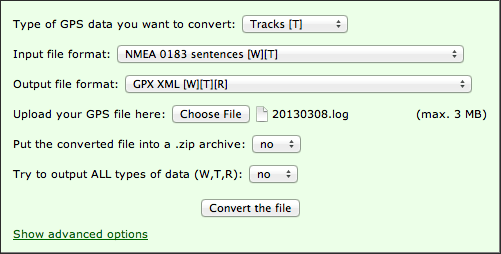
At the bottom of a forum thread I had already read, I re-examined a post that I had previously glossed over. I had already found the location of the log files on my computer and taken a look at them. They were in plaintext which was promising. The post I found made things clearer. The Canon GP-E2 is an NMEA-0183 compliant device. There is an excellent free utility available — GPSBabel — that can convert NMEA files to GPX. I quickly tried out the on-line version of GPSBabel and found myself with a lovely GPX file.
I loaded the GPX file and some sample photos into GPSPhotoLinker, and lo and behold I had geotagged photos.
So in short, to convert your GP-E2 logs to GPX format:
import your logs from the GP-E2 into MapUtility as described above;
located the imported logs on your computer (on a Mac they are in /Users//Documents/Canon Utilities/GPS Log Files, on Windows try C:/users//Documents/Canon Utilities/GPS Log Files);
use GPSBabel to convert the log file from NMEA-0183 to GPX.
On OS X, when you download and install the GPSBabelFE.app GUI, then the command-line executable binary is located at /Applications/GPSBabelFE.app/Contents/MacOS/gpsbabel. If you use the command-line version of gpsbabel, the conversion command will look something like:
If you use the on-line version of GPSBabel then the conversion form should look something like this:
Using Canon MapUtility to Geotag non-Canon photos
But what if I want to use Canon’s MapUtility to geotag non-Canon photos rather than exporting the GPS track log to another program? Well, I figured that out too.
Map Utility simply uses the EXIF “Make” tag contents (the name of the camera manufacture stored in each photo when it is produced) to restrict geotagging to photos taken with Canon cameras. Lame. Are Canon afraid that users will mess up existing goetags from other manufactures? Maybe, but this restrictions seems useless.
I used OS X Terminal.app and ExifTool to read the contents of of the “Make” tag on a sample photo…
exiftool -Make Non-Canon-Photos-Folder/photo1.jpg
Make : Panasonic
…temporarily changed the tag contents of a bunch of photos to “Canon”…
As you can see, with exiftool you can easily batch manipulate EXIF data. You are not limited to JPEGs. ExifTool works with almost any file format that can contain EXIF, IPTC, etc.
Also, in the exiftool command you have the option of specifiing a single file as your source, a directory of files, or a list of files identified using wildcards.
In the above examples, the original files are renamed and kept as backups, but you can turn off this behaviour.
And finally, ExifTool can be used to geotag your photos using the data from your GPX or NMEA log files, allowing you to skip the MapUtility altogether. I think I’ll be working on a script to automate this soon.
If you are not comfortable using the command line, then I’m sure there is a GUI utility out there for you. Unfortunately Adobe Bridge does not let you modify EXIF camera data such as the “Make” tag. Not sure about Lightroom.
Conclusion
I’ve always loved cartography, globes, and paper maps. Maybe this is why I am so late to the GPS game. Except for navigating with digital maps on my phone, which I use when travelling in foreign cities, I’ve not used GPS much.
Last year, on a canoe trip, while navigating a huge lake, we got turned around and disoriented (well some of the group got disoriented). I knew which way we were supposed to be going because I photographed the sun rising that morning and I knew which way was North. We were supposed to be heading North. At that moment we were heading Southwest. The low autumn sun and the monotonous topography had confused people. One person had a handheld GPS receiver along and they simply confirmed the position I gave them. You see, GPS (technology) isn’t everything.
In the world of digital photography, however, I’m finding that GPS can be an interesting tool for documenting, remember, and telling a story.
This is what I have learned so far about geotagging. Well, actually just about getting photos geotagged in the first place. There is a lot still to be learned.
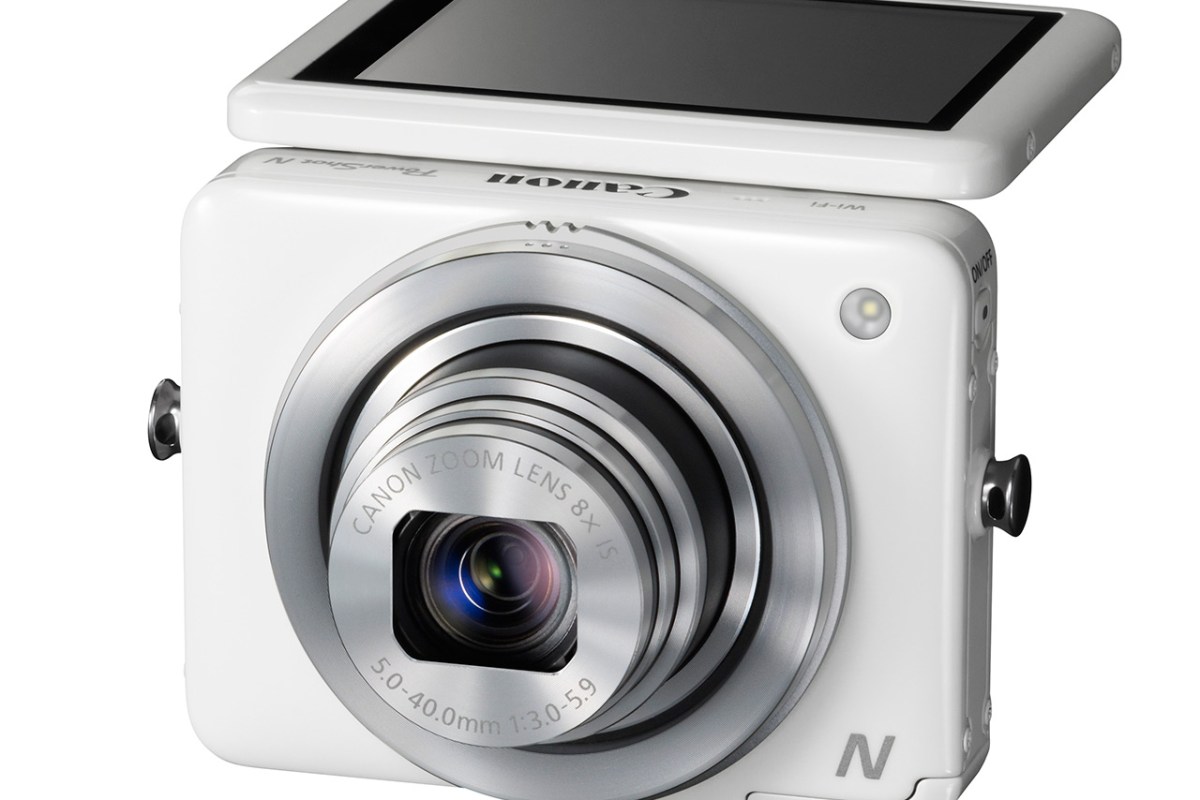
I was probably the last to hear about it as I don’t really pay too much attention to news or announcements regarding compact (point-and-shot) cameras, but on January 7, Canon announced a very sleek looking little package they are calling the PowerShot N.
Like any camera (even pro-DSLRs) the Canon Powershot N has a few “flaws” (the built-inLED light — one cannot call such thing a flash — is a joke), but overall I like that they are pushing the concept of what a compact camera can be.
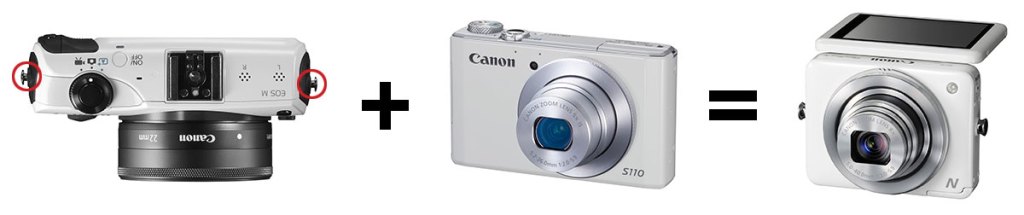
Aesthetically it is a cross between my Canon Powershot S110 (with the lens ring functionality) and my EOS M (with its round-edge squared-off body and strap mount posts). I absolutely love the symmetrical layout. A tilting screen always makes me nervous (durability), but is also a big aid in off angle viewing.
In fact, the way you can operate the camera controls and shutter from the lens rings, and hold the camera at waste level is very reminiscent of shooting with a twin lens reflex camera. Waist-level shooting is actually the best position for shooting street photography. It is a very stable and compact position (especially when the camera is tensioned off of a kneck-strap) and very stealthy (you are not holding a camera up in front of your face saying, “Hey look at me — I’m taking your picture!”)
Waist-level photography compared to eye-level photography as illustrated in the BlackBird Fly Camera manual
It sounds like Canon are striking the right balance between serious camera and mobile photography accessory. I quite enjoy having Wifi on my Powershot S110, especially as I have not been travelling with a computer or even an iPad lately. The ability to photo-blog, or keep family up-to-date via my iPhone while still using a quality camera is very much appreciated. I also really like the PowerShot N’s ability to charge via a USB cable. A wall mounted charger is just one more thing to carry and you are not likely to have it with you when you really need it. It would be really special if the PowerShot N would automatically back-up files to the cloud when plugged in to a power source, the way iOS does with Photo Stream (this saved my butt in Argentina when I had my iPhone 4 stolen by pickpockets on the metro — I didn’t lose a single Hipstamatic because they had all been backed-up to my iCoud Photo Stream).
Personally, even with a go-everywhere, slide-in-my-pocket compact camera, I put RAW storage and Manual mode on my list of criteria. These are the reasons why I use the PowerShot S110. For the PowerShot N, RAW storage wasn’t mentioned in Canon’s press release, so maybe it will be included, but I have my doubts. If everything else was incredible, I could work with Program mode, but Manual mode would be so much better, especially as this is being positioned as a “creative” camera. To be creative you need control and that just doesn’t mean just having a half-dozen toy camera filters available.
I think I have enough camera’s to satisfy all my wants and needs at the moment, but I’m still interested in trying out the PowerShot N when it becomes locally available.
Read the Press Release and get the camera specifications over at the dpreview.com (the best photography review site in my opinion).
Wow, this site might actually turn back into a photography and design related blog!
On Simplicity
When Canon announced the EOS M mirrorless body, I was instantly intrigued. Okay, I instantly knew I was going to get one. I like simple things. I like my Mac Mini. I like canoes. And at some point, in my photography, I switched almost exclusively to my Hipstamatic app. The EOS M works with any EF lens and seemed to be the perfect combination of simple and versatile.
But this post is not about the EOS M.
On Fun
When I started shooting with the EOS M, I instantly missed the fun and creative distortions that I was used to getting from my iPhone and Hipstamatic. To get back some of that spontaneous creativity I decided to pick up a few Lensbaby Optic Swap lenses as well as the Lensbaby Composer Pro and Lensbaby Scout with the fisheye lens. After a couple of weeks I fell in love with the fisheye. After getting a glimpse at the potential of a fisheye lens, I decided to splurge and get a pro-level fisheye.
The Sigma 15mm f/2.8 comes highly recommended, especially if you are shooting with a full frame sensor. The EOS M has a cropped APS-C sensor, so I wanted something a little wider. The Canon EF 8-14mm f/4 USM L Fisheye is the world’s first fisheye zoom, and though a bit bulky and pricey it gives the most versatility. (Also, “pricey” is a relative term — you get what you pay for.)
Simply Fun
Here are some results from my first day shooting with the with the Canon EF 8-14mm f/4 USM L Fisheye. I got some okay test shots. All taken with the EOS M body and available light. Click the images for larger versions.
Title: Chandelier and Shadows
Specs: 10mm, 1/60s @ f/5.0, ISO 800
Comment: Fisheye as still-life lens. Oooh, artistic black and white. Very sharp throughout the image, even at f/5.0. I wanted to crank the contrast to bring out the shadow so I ditched colour.
Title: World’s Most Serious Baby
Specs: 15mm, 1/20s @ f/4.0, ISO 1600
Comment: Fisheye as portrait lens. Very little noise even at ISO 1600. A little bit of motion blur at 1/20s, but babies are worse than cats for trying to get them to stay still. The EOS M is not a very fast focusing body, even with USM lenses. A little bit of chromatic aberration on the contrasty edges (like the tops of the curtain in the background), but was totally removed by Adobe Camera Raw. BTW, this lens is not in the Adobe lens correction database. Can’t think why? The old Canon 15mm f/2.8 fisheye is in there as are my EF-M lenses. I think I’ll be manually removing a bit of vignetting but really the lens seems to be very even. Need to do more testing around that.
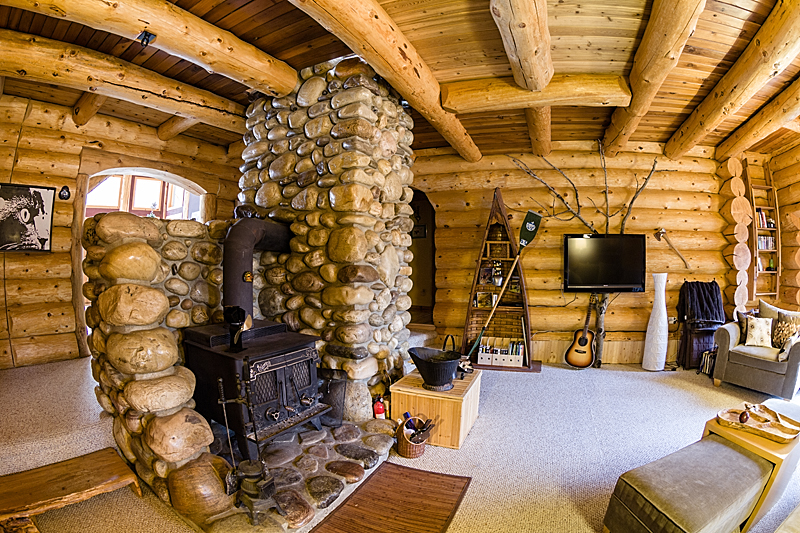
Title: Roughing It
Specs: 10mm, 6.0s @ f/7.1, ISO 100
Comment: Fisheye as architectural interiors lens. Go tripod, it’s your birthday. I need one of those hotshoe mounted bubble levels. Getting the lens perfectly level handheld is hard. Easier when you have a tripod with a level. Especially when you want to shoot with a 6 second shutter speed. With the fish-eye, it’s hard to keep light sources out of the shot. I’ve just kind of accepted that there will always be some blown-out elements that I will have to recover in post (thankfully I am getting pretty good at that).






 This should be the future of geotagging. Every camera should have a built-in GPS receiver and Wifi. These microchips are cheap.
 If your camera does not have built-in GPS and/or you do not want to use your smartphone as a GPS logger, then you have two other options: use a stand-along GPS receiver that can log tracks and export those logs to your computer (e.g., a Garment eTrex); or, buy a dedicated external GPS receiver that is designed to work directly or indirectly with your camera model.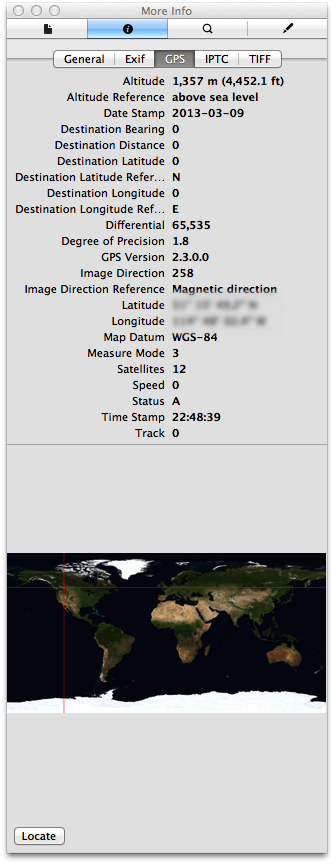







 Springer Photo Graphics