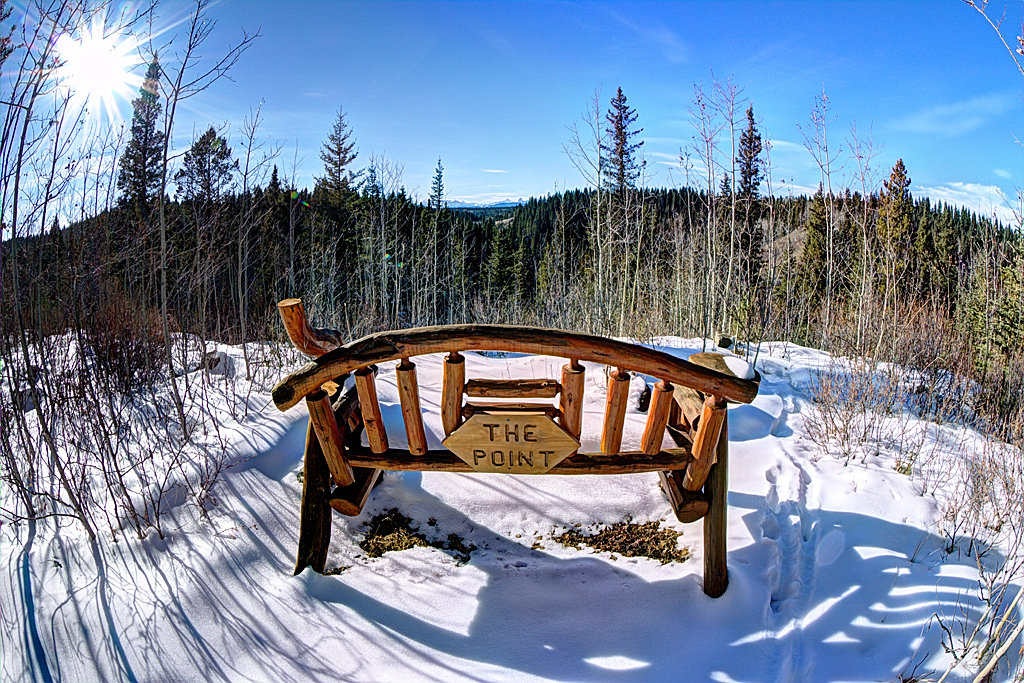
I’ve played around a bit with HDR (High Dynamic Range) photography before, but I often find the results overdone and unrealistic. Usually when an HDR image is overdone, the photographer simply labels it as “creative”. [pullthis id=”creative”]Creativity comes from mastering skills and having a vision — not from letting software get out of control.[/pullthis]
[pullshow id=”creative”]That said, there are times when I do find HDR useful and I wanted to get a little more practice with HDR techniques using the bracket exposure method (-2, 0, +2).
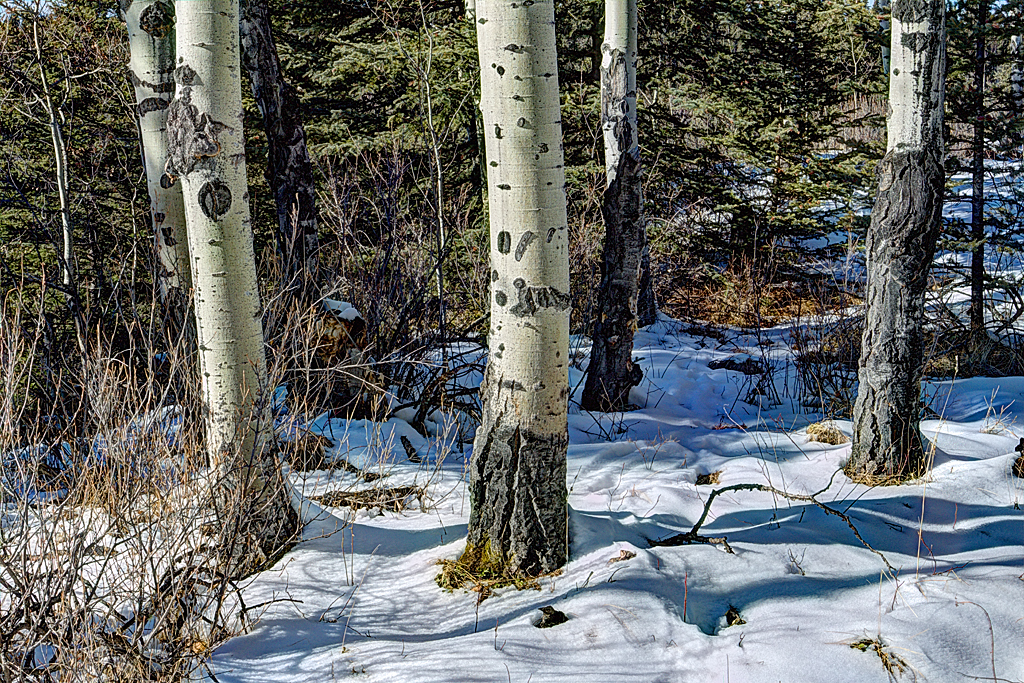
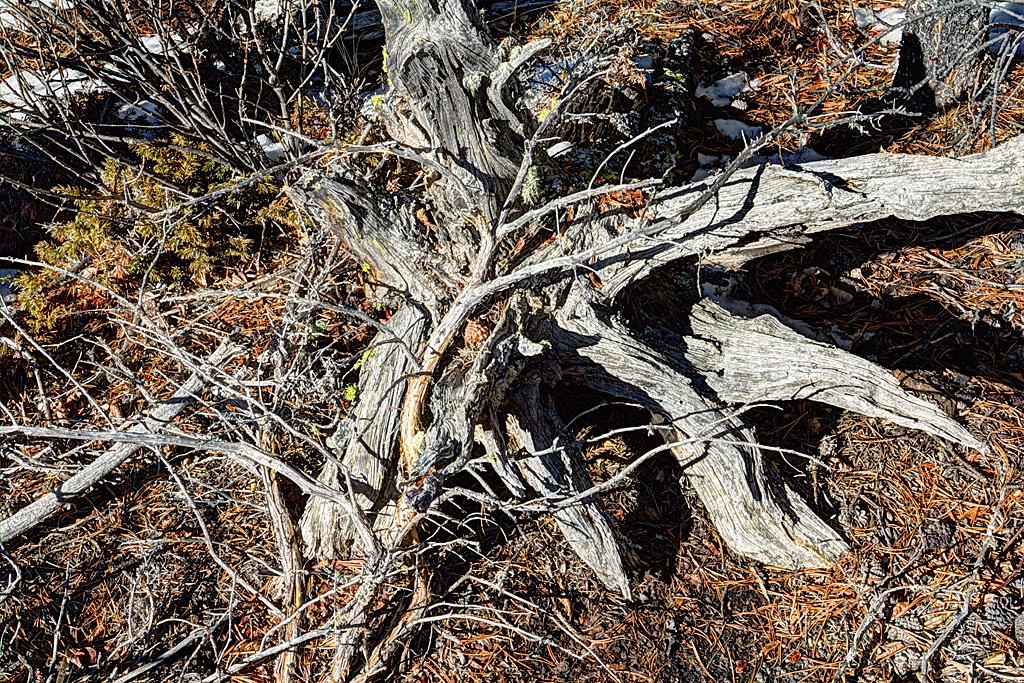
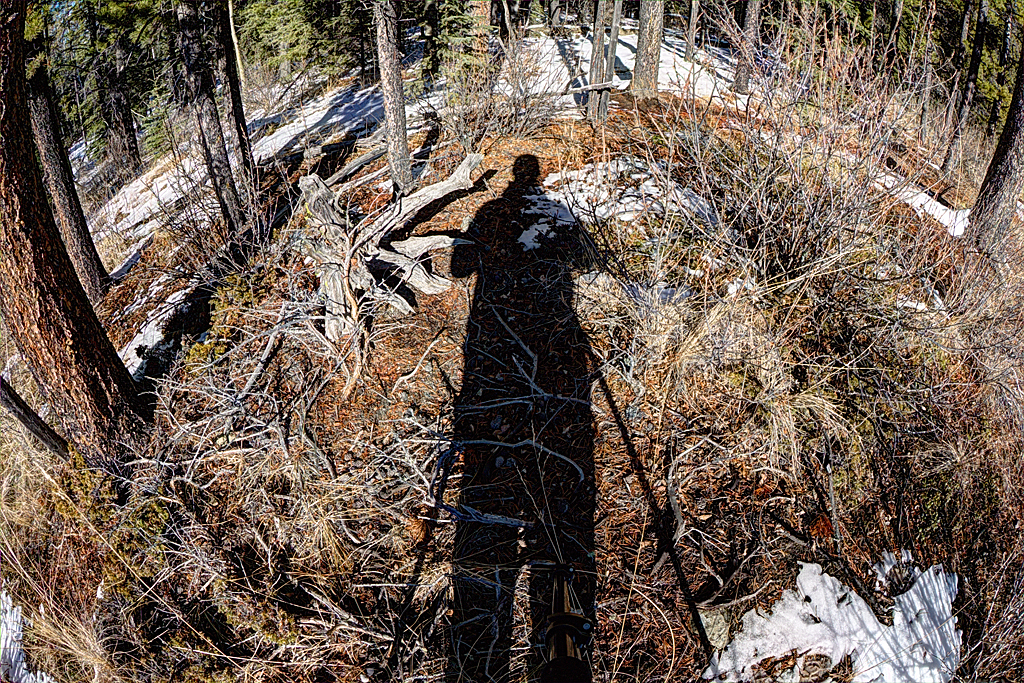
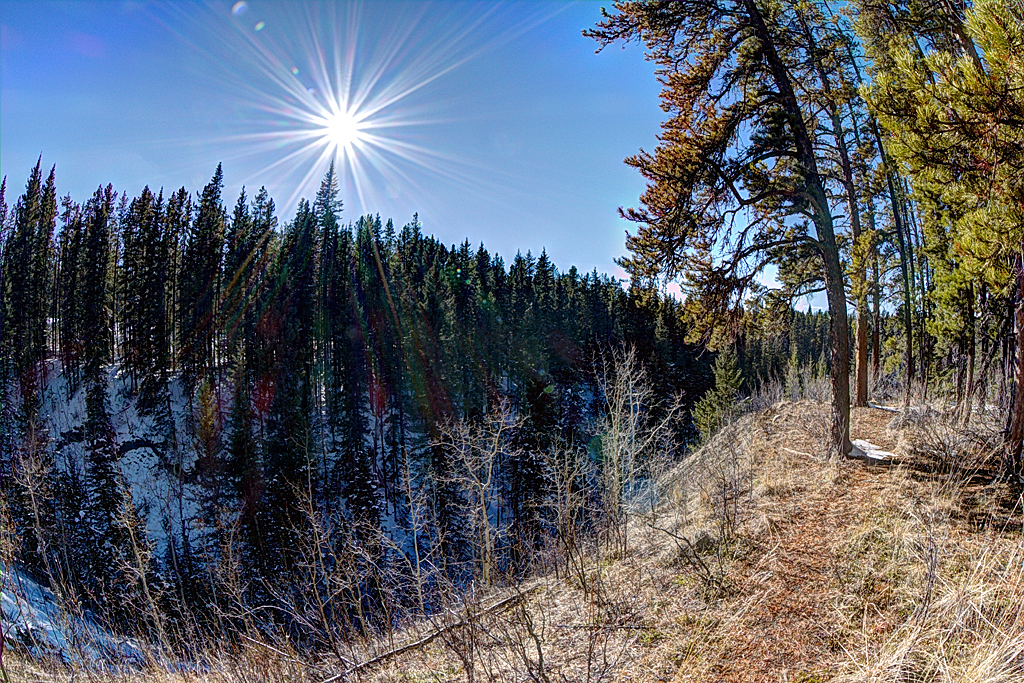
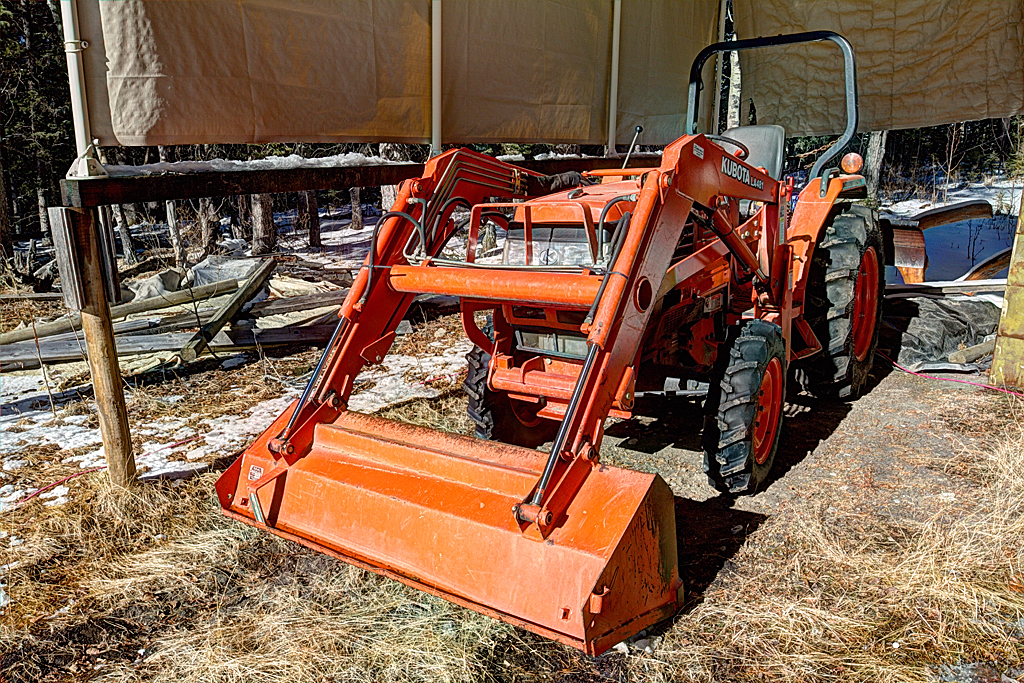
Yesterday was a good opportunity to get some test shots. I spent the afternoon wandering around the property at our cabin, creating some bracketed exposures. It was a good day day for HDR: the sun was out in full force; a recent blanket of snow was lingering in the trees; the trees were casting deep shadows all around; and, not to be under emphasized, there was very little wind, which meant that ghosting between frames could be minimized. For my own sanity I shot everything on a tripod.
Back at my computer I downloaded a few HDR software trials. (I find the Merge to HDR Pro feature in Photoshop to be a bit junky.) I decided to compare the results of Photomatix Pro, by HRD Soft, and HDR EFEX PRO 2, by Nik Software (I have been using Nik Software’s Snapseed on my iPad).
HDR EFEX PRO 2 seems like a good piece of software. It runs as a Photoshop plug-in, which I like the idea of, in theory. In reality however, it runs a bit slow for my tastes (I have a new Mac Mini on order, so I’ll try it again on on more modern hardware). There seem to be a lot of bells and whistles in HDR EFEX PRO 2 which can be good or bad depending on your point of view. I do like the before and after comparison view. The end results, from my limited testing, seemed fine. There seems to be a steep learning curve though to get the results I want.
Photomatix Pro might not be as pretty as HDR EFEX PRO 2, but what it lacks in sex appeal it makes up for in speed. It’s ghost removal tool is very easy to use and works wonderfully (again in my limited testing). I settled on using “fusion” mode for my images, as it was the easiest to work with and gave me the visual results I wanted — a little more contrast but at the expense of some shadow detail. There aren’t a lot of bells and whistles in Photomatix Pro, but for the moment it will do for me. I do wish it had the spot adjustment and graduated neutral density features of HDR EFEX PRO 2.
So, for $99 (minus a discount), I got the watermarks removed from Photomatix Pro and went to work.
I used unprocessed raw images from my Canon EOS M for all the HDR photos. Since this was my first time doing bracketed exposure HDR I made more exposures rather than less, and I am glad I did. I’d dug out and used my old Seconik L-508 light meter yesterday. I hadn’t used it in years and hadn’t bothered to calibrated it to the EOS M. It looks like all my neutral (0) exposures were underexposed by about half stop. As a result, I had to compensate in Photomatix Pro by boosting the mid-tones. Once I settled on a good group of settings though, I was able to use them with only minor tweaks for the rest of the images.
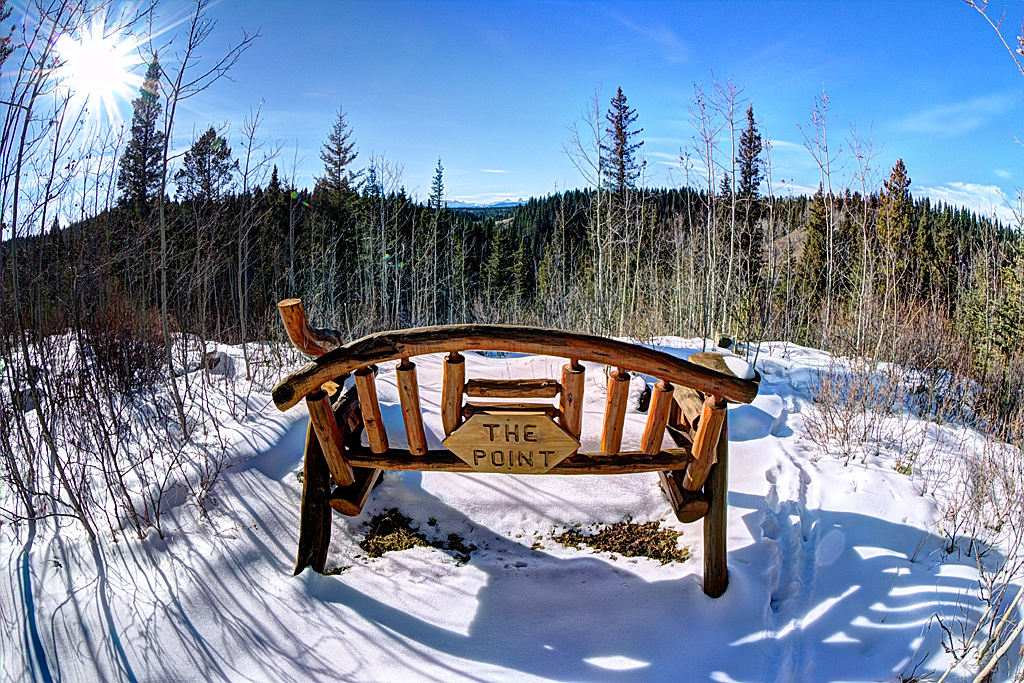
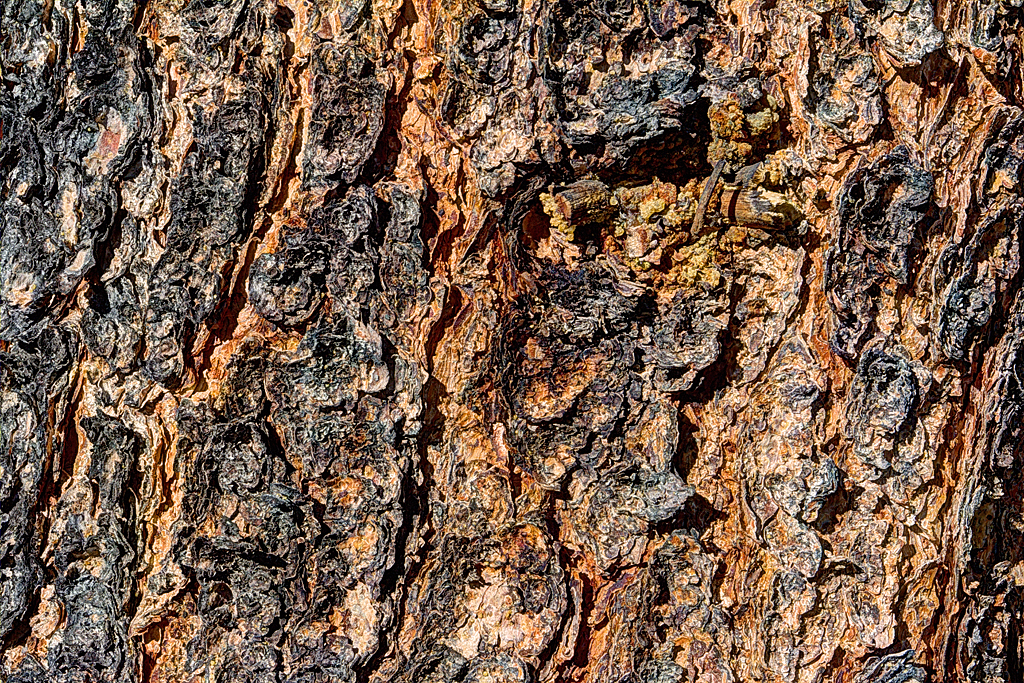
[pullshow id=”screaming”]I like the results, as images in themselves, but I’m still not sure HDR is the right look for me. [pullthis id=”screaming”]Hopefully, these images are not screaming “HDR” at you anyway.[/pullthis]
I also made some exposures with my Lensbaby Pinhole optic while I was out walking around. That lens creates the softest focus, lowest contrast photos you are ever likely to capture with an 18 megapixel sensor! At f/177 it might also be the smallest aperture 50mm lens I will ever own. The results are at the opposite end of the spectrum from HDR, technology-wise, but are fun none the less. I will share some of these pinhole photos if I get a good set created sometime.
Click each thumbnail below for a larger version.
P.s., A big thank you to my friend and fellow photographer, Rob. Rob is technical wiz and the first person I go to when I have questions about some new photography technique. Chances are pretty good that Rob will already have tried it out, tested the hardware, evaluated all the software, and will be ready to jumpstart me on the road to photographic discovery.
In Search of the Holy Grail of Mobile Photo Editing
I occasionally use iPhoto on iOS to clean up pictures to share while I am on the go. That is, if I am using an image from the built-in camera app or uploaded from my Wifi-capable Canon PowerShot S110. If I shoot something with Hipstamatic I usually just share the shot without any editing, and then clean it up later on my Mac in Photoshop if there is something I want to change or improve.
I’ve been travelling a lot recently and I’d like to have a fully mobile, professional-quality, photo processing solution with me on the road. Usually I do all my post-processing on my desktop Mac after returning home from a trip. But for longer trips, I’d like to being to do some post-processing on the go. For example, I’m going to Europe for two months this spring and will only be taking my cameras, iPhone, and iPad — no laptop (well, I don’t own one anyway). Normally, I don’t even carry my iPad while travelling, but this time we will mostly be staying with friends and family, so I don’t mind lugging it along.
There is one serious limitation to using an iOS-only post-processing photography workflow — there are no RAW photo editing iOS apps. While the iPad can import RAW files via the camera adaptor kit, there is no software available on iOS with which to take full advantage of the RAW camera data. (BTW, Macworld has a nice article about using the iPad in your photography workflow.) The holy grail would be the equivalent of Lightroom or Adobe Camera Raw on iOS.
In the absence of the holy grail, I decided to compare a few iPad photo editing apps to assess there strengths and weaknesses. My basic evaluation criteria was to what degree I could use each app to do my basic post-processing operations:
color balancing;
contrast adjustment;
selective dodging and burning (lightening and darkening for you new-school photographers);
cropping;
vignetting or de-vignetting;
sharpening;
black and white conversion;
batch processing; etc.
The ability to apply filters or effects was secondary in my evaluation. I didn’t even consider sharing capabilities. Again, I’m looking for something I can use to make my images look as good as possible (100%) using only an iPad (or iPhone), so I can shoot, edit, and share professional-quality photos I can be proud of while on the road.
The Apps
Photos
The built-in Apple Photos app has some editing features, so let’s start there. The tools at our disposal are: rotate, enhance, red-eye (reduction presumably), and crop. The crop tool is useful, as is rotate for those times when your cameras orientation sensor gets confused (looking up or down at an extreme angle). But rotate only works in 90° increments so it does not work for straightening slightly crooked photos. The improvements offered by the enhance feature are minimal (basic contrast correction as far as I can tell). I can’t speak to the quality of the red-eye feature as I so rarely use flash that my subjects never have the chance to get red-eye. That, and the fact that my wife blinks a lot, so even if I use a flash, hers eye are probably going to be closed anyway. (Pro tip I learned from Steve McCurry who shot the last roll of Kodachrome ever manufactured and who needed to make every one of thirty-six exposures count: give your subject a countdown from 3 to 1, tell them to pre-blink on 2, and then take the picture on 1).
iPhoto
iPhoto was the first serious photo editor released for iOS. And in many ways it is still the best. The UI is a bit confusing and clunky, but generally usable. The functionality is excellent and for a $5 upgrade over the built-in Photos app you get an advanced straightener; contrast and saturation correction sliders; a crop tool with free, constrained, or ratio modes; local adjustment brushes; and effects including gradient neutral density, vignette, black and white, vintage, toning, etc.
I try to get things right in camera as much as I can. Correct composition and crop. Proper white balance and exposure. But I still consider images just out of the camera to be about 75% complete. With iPhoto I can elevate that to about 85% complete.
Photoshop Touch for iPad is quite a capable photo editor. On the one hand it supports layers, which can be a good or bad thing depending on how you look at it. I do very little compositing. On my Mac I, when editing photos, I using Photoshop layers almost exclusively for adjustments tweaks after doing most processing in Adobe Camera Raw. The layers feature in Photoshop Touch is just in the way. Now if I could add adjustment layers, I’d be a fan. But not yet.
One of the tools I use a lot on my Mac, be it in Adobe Camera Raw or in Photoshop, is the curves adjustment tool. This goes way back to my days as a scanner operator in pre-press. Thankfully, Photoshop Touch has curves and levels adjustment tools.
Photoshop Touch’s crop and rotate tools are superior to iPhoto’s due to the fact that you can enter numerical adjustments. Skew and reflect tools are also available. There is a comprehensive choice of selection, drawing, cloning, and touch-up tools. I can’t say much about the supplied effects, except that there are some.
With Photoshop Touch I feel I can get done about 90% of what I usually do on the desktop (accepting the fact that RAW processing is missing).
Snapseed
Snapseed, by Nik Software (a Google Acquisition), is an innovate app with a large suite of both basic tools and powerful effects. The UI is unique among apps I have tried, but is highly usable once you understand the basics. It has almost all the features of Photoshop Touch minus layers and the drawing and selections tools. And in a lot of ways the Snapseed offering is better. It has a nice Structure function in its Details suite (equivelant to Adobe Camera Raw’s Clarity function). I often prefer to use this type of local contrast enhancement instead of making global contrast changes (which I usually do with curves).
For basic photo post-processing, Snapseed seems like it could get me to 93% completeness. There are still several things missing though.
In particular, a histogram would help to ensure whites and blacks are not being clipped and make overall analysis easier.
The white balance tool leaves something to be desired. Why can’t they just offer an eyedropper for sampling neutrals?
The effects suite of Snapseed is better than any I have seen elsewhere. For the occasions when I want to get a little messy this is going to be my go-to app. One of the reasons that the effects are so good is that they are all parametrically driven. Every aspect of an effect can be adjusted.
This brings me to a suggestion that would make this a 95% app. Since all the adjustments and effects are parametric, having the ability to store personal presets would be amazing. Well, in the mobile app world this would be amazing. In the real world, the ability to store presets and batch process images is a necessity. So far I have not seen any iPad/iPhone app with such essential capabilities, with one exception. Which brings us to B&W Lab.
B&W Lab
Between 5 and 10% of the images I shoot I end up converting to black and white (or some sort of monochrome).
More photographers should explore black and white. Just because most digital cameras capture color images all the time, does not mean this is the best way to represent a scene or the photographers vision. When the photo is about shape, line, texture, or structure, it would probably be a more powerful image if rendered in black and white.
B&W Labs is the best app I have found for making black and white conversions on the iPad. It surpasses Snapseed’s Black and White suite. In Beginner mode there are very usable presets provided. Additionally, after you choose a starting filter you can modify every parameter of the preset via sliders. (The method of choosing a starting point in Expert mode is a little different). There is even a useable Tone Curve tool. You are limited to five handles on the curve, but that is more than enough for most situations. Performance is little slow, but not horrendous.
B&W Lab allows you to load the settings from any previously edited image into the current session. The feature, labeled History, is a little counter intuitive as are most of the UI elements. I’ve gotten used to the idiosyncrasies though and have no problem making great black and white conversions with this app. If they could allow you to batch apply History settings, then this app would be amazing. A histogram wouldn’t hurt either.
For black and white processing only, this app actually gets me about 98% completeness.
Image Blender
Image Blender is a little different from the other apps reviewed here, designed purely for compositing two images together.
The art of multiple exposure is almost lost in this era where every click of the shutter button results in a separate image file. In the age of film, creating multiple exposures was easy. Most cameras had the option to cock the shutter without advancing the film. Other cameras, like my 4×5 field camera, required the photographer to change film after each shot, and if they didn’t they could keep exposing the same piece of film over and over. (There used to be studio techniques involving multiple strobe flash bursts, one after the other, that required the ability to do in-camera multiple exposures. Alas, those techniques are lost to us digital photographers.) But I digress.
Much like Photoshop Touch layers, Image Blender allows you to set the blending mode between two images as well as the opacity of the top image. The output file always has the resolution of the smallest input file (not a problem if both inputs are the same size). Image Blender also has some masking features that I haven’t played around with yet.
Image Blender wouldn’t ever be my first choice for general post-processing of course. That’s not what it is designed for. But if I want to make a conceptual multiple exposure from two images, I would probably use it over Photoshop Touch layers. And if I need to make an illustration or banner for a blog post, I might use its masking features, although I might just go to the more familiar Photoshop Touch instead.
Conclusion
All of the main photo editing apps mentioned here — iPhoto, Photoshop Touch, Snapseed — were released over a year ago. That’s not to say nothing new is happening in this space. These apps are actively being maintained with updates coming out about quarterly. They keep getting better, but in my view as a photographer, looking for a professional mobile editing and workflow solution, there is still a lot of room for improvement. Whichever developer first releases a RAW processor with camera profiles and lens correction capabilities is going to make a lot of money.
In terms of display quality, processor power, and connectivity, I still believe in the promise of the iPad as a professional, mobile, post-processing solution. But at the moment, even after editing and sharing some of my creations while on the road, I will still be going back into Adobe Camera Raw and Photoshop on my Mac to re-edit images in an effort to eek out those few remaining percentage points of quality. Nothing but 100% will do.
Samples
For each app reviewed, I used an image from my iPad camera as a starting point and pushed the software to see what it could do. In iPhoto and Photoshop Touch, I just tried to improve upon the output of the iPad’s camera. I didn’t necessarily do the same operations in each app. I just used the tools at hand to maximize the image’s potential (not that it was a great image to begin with). I did the same in Snapseed, but have provided here a sample of one of the Vintage filters instead. The B&W Lab and Image Blender samples are self explanatory, I hope.
Original from iPad cameraiPhotoPhotoshop TouchSnapseed with Vintage filterB&W LabImage Blender
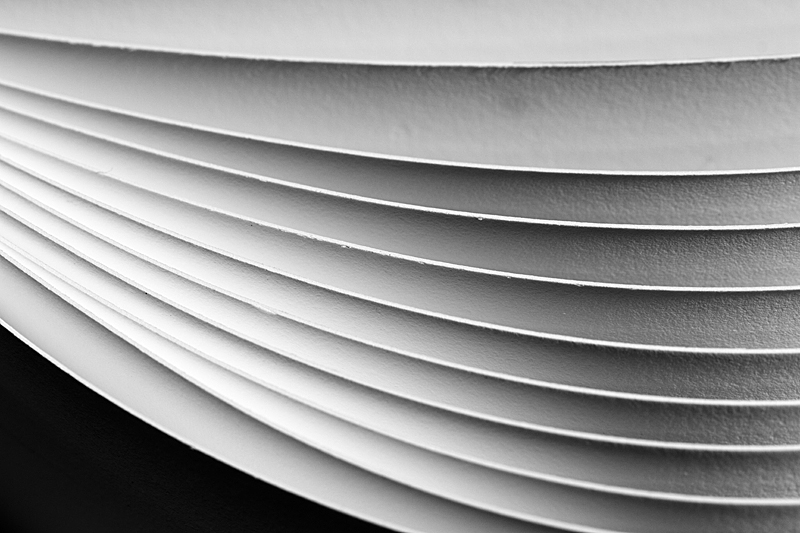
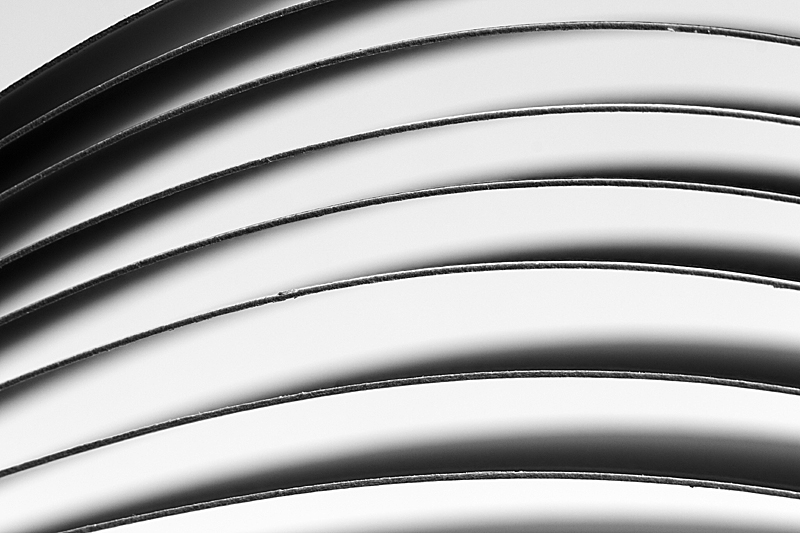
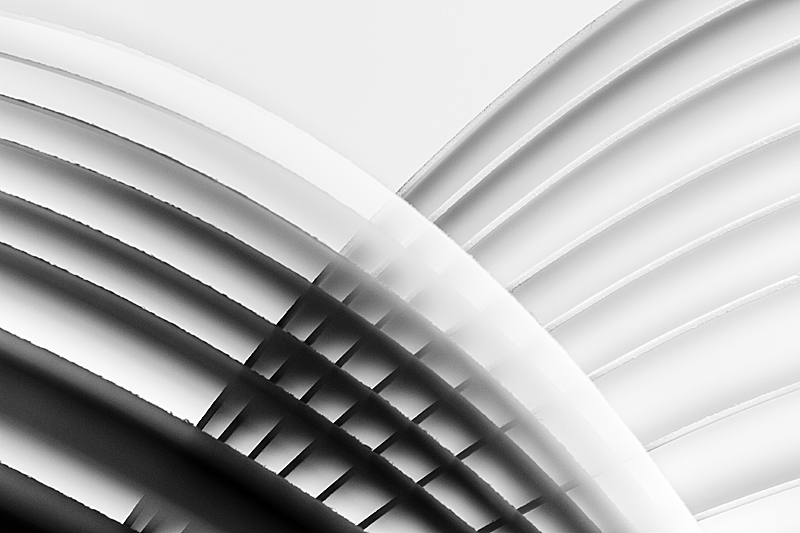
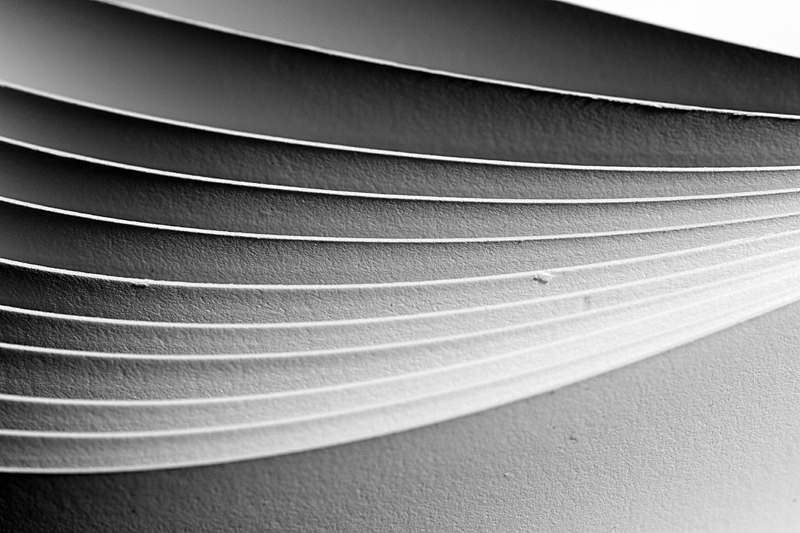
I’ve always been intrigued by the abstract lines, shapes, and shadows that are created simply by fanning out a stack of paper. After printing some greeting cards today I was playing with some cut-offs and decided to see what things looked like through a macro lens.
In about three minutes I had created a simple tabletop studio: white paper backdrop supported by my 80-200mm f/2.8; desk lamp with a 60 watt incandescent lightbulb as a light source; strips of heavyweight rag photo paper fanned out and held in place with bulldog clips as my subject; Canon 100mm f/2.8 Macro on a Canon EOS M body; Manfrotto 190 series aluminum tripod with ball-head and Really Right Stuff Panoramic quick-release clamp mount.
I just played around with moving the paper and the camera around to get different graphic compositions. The EOS M wouldn’t focus the 100mm macro at such close distances, but that was okay, because using manual focus I was able to experiment more. I was shooting at 100 ISO to keep the noise down and had a bit of trouble getting perfect exposures — with the shutter speed set to about 2.5 seconds the EOS M live view histogram, exposure meter, exposure simulation, and final exposure never really matched up. I set the exposure using the live view histogram and then adjusted fire based on the post-exposure result.
After a little whiskey, and a bit of post-processing, I had a half dozen interesting abstract shots. Click the images to see larger, un-cropped versions.
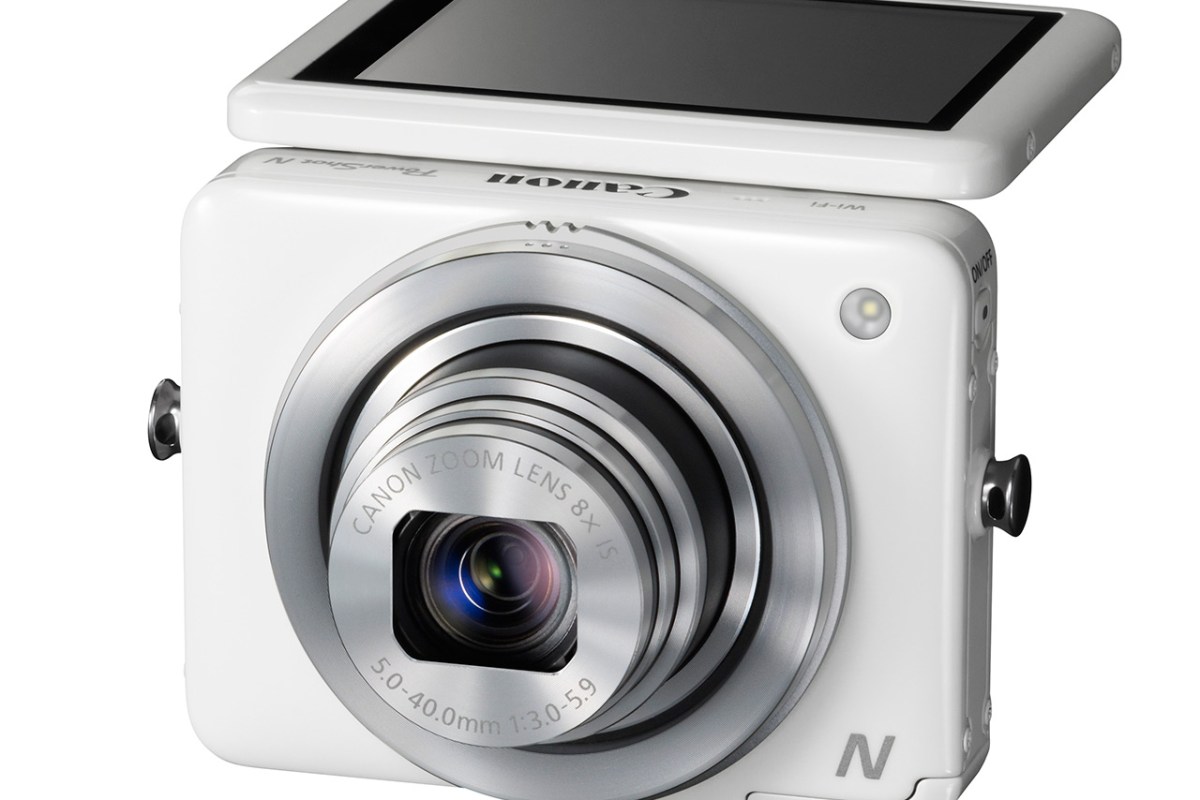
I was probably the last to hear about it as I don’t really pay too much attention to news or announcements regarding compact (point-and-shot) cameras, but on January 7, Canon announced a very sleek looking little package they are calling the PowerShot N.
Like any camera (even pro-DSLRs) the Canon Powershot N has a few “flaws” (the built-inLED light — one cannot call such thing a flash — is a joke), but overall I like that they are pushing the concept of what a compact camera can be.
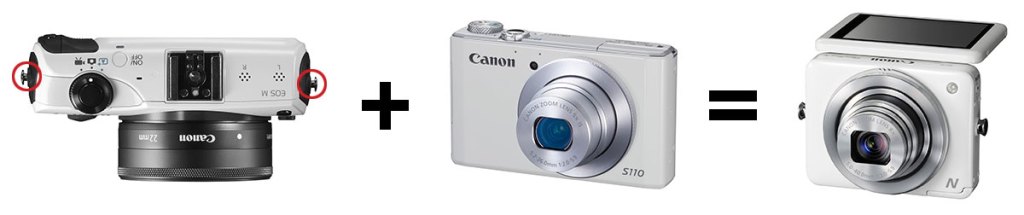
Aesthetically it is a cross between my Canon Powershot S110 (with the lens ring functionality) and my EOS M (with its round-edge squared-off body and strap mount posts). I absolutely love the symmetrical layout. A tilting screen always makes me nervous (durability), but is also a big aid in off angle viewing.
In fact, the way you can operate the camera controls and shutter from the lens rings, and hold the camera at waste level is very reminiscent of shooting with a twin lens reflex camera. Waist-level shooting is actually the best position for shooting street photography. It is a very stable and compact position (especially when the camera is tensioned off of a kneck-strap) and very stealthy (you are not holding a camera up in front of your face saying, “Hey look at me — I’m taking your picture!”)
Waist-level photography compared to eye-level photography as illustrated in the BlackBird Fly Camera manual
It sounds like Canon are striking the right balance between serious camera and mobile photography accessory. I quite enjoy having Wifi on my Powershot S110, especially as I have not been travelling with a computer or even an iPad lately. The ability to photo-blog, or keep family up-to-date via my iPhone while still using a quality camera is very much appreciated. I also really like the PowerShot N’s ability to charge via a USB cable. A wall mounted charger is just one more thing to carry and you are not likely to have it with you when you really need it. It would be really special if the PowerShot N would automatically back-up files to the cloud when plugged in to a power source, the way iOS does with Photo Stream (this saved my butt in Argentina when I had my iPhone 4 stolen by pickpockets on the metro — I didn’t lose a single Hipstamatic because they had all been backed-up to my iCoud Photo Stream).
Personally, even with a go-everywhere, slide-in-my-pocket compact camera, I put RAW storage and Manual mode on my list of criteria. These are the reasons why I use the PowerShot S110. For the PowerShot N, RAW storage wasn’t mentioned in Canon’s press release, so maybe it will be included, but I have my doubts. If everything else was incredible, I could work with Program mode, but Manual mode would be so much better, especially as this is being positioned as a “creative” camera. To be creative you need control and that just doesn’t mean just having a half-dozen toy camera filters available.
I think I have enough camera’s to satisfy all my wants and needs at the moment, but I’m still interested in trying out the PowerShot N when it becomes locally available.
Read the Press Release and get the camera specifications over at the dpreview.com (the best photography review site in my opinion).
A circular polarizer is a filter placed in front of a camera lens to reduce the amount of reflected light travelling through the lens and landing on the sensor (or film) in your camera. Today, almost all polarizer filters sold are circular polarizers which work with modern auto-focus cameras.
Professional photographers often use polarizer filters to:
remove unwanted reflections on shiny surfaces (e.g., a wind, glass coffee table, model’s glasses, etc.);
remove glare from water, snow, beaches, etc.;
reduce the effect of atmospheric haze in the sky area (make the sky “bluer”, enhance detail in clouds);
increase colour saturation (by removing light reflections and glare from tree leaves or any other moderately shiny surface).
Amateur Hour
In many instances an image can be vastly improved by the careful application of a polarizing filter, and yet I rarely see amateur photographers using such filters. I guess filters fall into the category of overly complex and hard to understand. Not being a physicist, I’m not sure I completely understand how polarization works, but I know that it does. And yet, almost anyone who drives a car, skis, or plays golf knows that wearing polarized sunglasses greatly improves vision in sunny situations.
Why then, are amateur photographers not using photographic polarizer filters more often? The answer, I believe, is two-fold. One, filters seem complex, and polarizers even more so. Two, camera manufactures do not include support for filters on 90% of cameras (i.e., no point-and-shoot that I know of has threads for attaching filters). In response, I say this: one, polarizers are dead-simple to use, and if you have lenses with filter threads there is no excuse for not using a polarizer under in many outdoor situations; and two, manufacturers choose not support filters on point-and-shoots because they think you are too dumb to use them even though they know that a polarizer will be a benefit in the vast majority of images you take with their cameras, but there is a workaround (more on that in a moment).
Some Samples
For a recent trip to Argentina, I decided to take my Canon EOS M and the EF-M lenses I have (22mm f/2, and 18-55mm f3.5-5.6). I haven’t travelled with an interchangeable lens camera for a while (I love my Canon Powershot S-series cameras). However, I surmised that there might be a few situations where a polarizer would be really valuable. Unfortunately the two lenses I was taking have differing filter thread sizes (43mm and 52mm respectively). Luckily my local camera store had a 52mm mid-grade Hoya in stock for about $50CAD (a large 77mm polarizer costs about $75CAD — approximately $1CAD per millimetre).
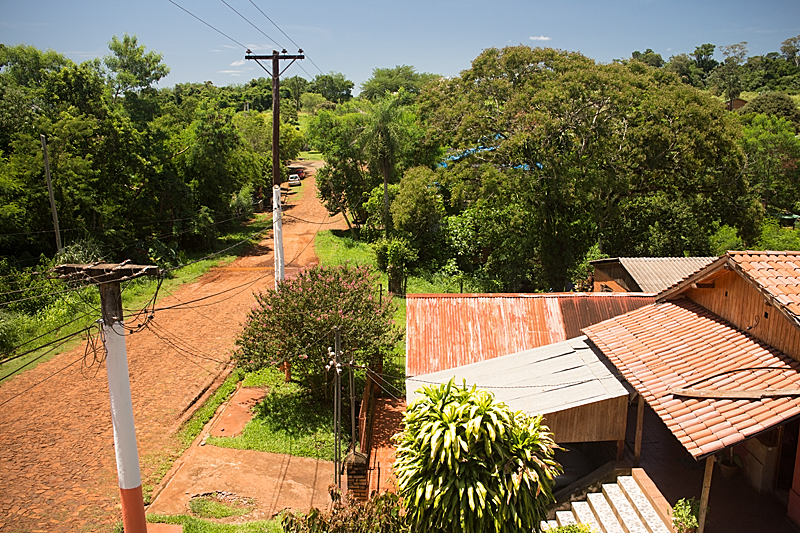
I mostly used the polarizer in and around the northern-Argentinian town of Puerto Iguazú in the province of Misiones. Misiones is primarily tropical jungle and famous for the enormous Iguazú Falls. In town the weather pattern was blazing sun in the mornings, building clouds around noon, and torrential rain in the afternoon. This being mid-summer, the only really bearable times to be out and about were during the relatively cooler mornings and evenings. The sun set at about 7:30pm, so the window for using the polarizer was between about 9 am and 12 noon. Most places around the falls were too wet and misty to use the polarizer at all.
The blue sky, intense sun, red earth, and green forest of every imaginable hue, lent themselves perfectly to the polarizer’s strengths. Without the polarizer, the sun and blue sky are reflected on every surface. The polarizer cuts out those reflections and lets the intense colours shine through.
Two pairs of images: un-polarized on the top, polarized on the bottom. All shot with the EOS M and EF-M 18-55mm. I always shoot raw, but have not done any post processing to these samples. Click the thumbnails for larger versions.
Top: un-polarized, 1/125 s @ f/7.1, ISO 200. Bottom: polarized, 1/80 s @ f/7.1, ISO 200
Top: un-polarized, 1/125 s @ f/7.1, ISO 200. Bottom: polarized, 1/80 s @ f/7.1, ISO 200
Negatives
One downside to polarizers is the fact that they substantially reduce the amount of light entering the lens. In these samples I had to reduce the shutter speed by about 2/3 (from 1/125 to 1/80 of a second) when using the polarizer. That is not too bad actually. A difference of a whole stop is not uncommon in cheaper polarizers. In handheld situations you might find you need to increase the camera ISO to avoid motion blur.
Another downside of polarizers is the possibility of some image degradation. You are introducing a couple of pieces of glass into the light path when you use a polarizer which may cause some loss of detail, vignetting, or other nastiness. With a medium quality polarizer with coated optics this can usually be avoided. I find that the increased saturation and reduced glare more than compensate for any loss in sharpness.
Righting Wrongs
I am currently reading Don Quixote, and this valiant old gentleman (a bit witless) is all about righting wrongs. How can more people take advantage of polarizing filters in everyday casual (i.e., amateur) photography and get the better quality images they deserve? There are several options.
Everyone should use an interchangeable lens camera with filter threads that support polarizers. Not likely. People like the compactness and ease of use of point-and-shoots. Going even further, let’s admit that mobile (smartphone) photography rules the world.
Manufactures could add filter threads to there point-and-shoot cameras. On many models this would be easy to do. On some, where the lens is hidden completely behind some sort of door when the camera is off, it might be impossible. Also, I am sure that point-and-shoot lens assemblies and zoom motors are not designed to have any sort of weight hanging off the front of the lens. A polarizer, UV filter, or such shouldn’t be a problem, but a large lens hood might be.
Manufactures could build polarizers right into the lens of point-and-shoot cameras. No need for a 52mm piece of glass stuck to the front of the lens. A 1omm filter inside the lens assembly and controlled by a tiny motor and touch-interface would do. This would increase the cost of cameras, so it would only make sense in mid- to high-end models, but it would also be a market differentiator.
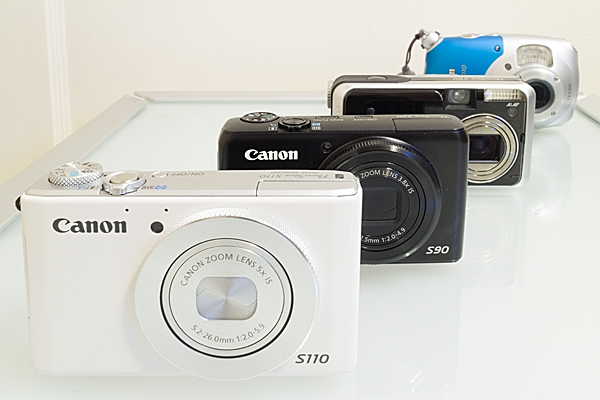
You can use a third-party adaptor to attach a polarizer to just about any camera. I’ve ordered a couple of 36mm MagFilter polarizers from CarrySpeed. A thin magnetic ring is attached to the front of the camera with adhesive, and the filter attaches to the ring with magnets. Looks like a slick system. It will work on my Canon PowerShot S-110 (and any S-series camera going back to the S-90). It looks like it will work on my Canon PowerShot D10 waterproof camera. (Of course I wouldn’t use it underwater or in really wet conditions, but this is also just a really rugged sports camera and I have always wanted the option to improve its shots with a polarizer.) I even measured my LOMO LC-A and it will work on there (though I haven’t shot a frame of film since 2003). A similar filter is available for iPhone (but not the iPhone 5).
Ugly DIY. Enough said.
Will Apple build a touch-controlled, motor driven polarizer filter into the next iPhone. Probably not. If they did, would I get rich from the idea? Even less likely. I have a theory though: the saturated processing of apps like Instagram and Hipstamatic, or the vogue of HDR, are simply the bi-products of polarizing filters not being available for a vast spectrum of cameras and photographers. And yet the optical effect of a polarizer filter is vastly superior to anything that can be done in software.
So here is my advice. Read more about polarizers and how they can help your photography. Get one for yourself. Use it. Love it.
Wow, this site might actually turn back into a photography and design related blog!
On Simplicity
When Canon announced the EOS M mirrorless body, I was instantly intrigued. Okay, I instantly knew I was going to get one. I like simple things. I like my Mac Mini. I like canoes. And at some point, in my photography, I switched almost exclusively to my Hipstamatic app. The EOS M works with any EF lens and seemed to be the perfect combination of simple and versatile.
But this post is not about the EOS M.
On Fun
When I started shooting with the EOS M, I instantly missed the fun and creative distortions that I was used to getting from my iPhone and Hipstamatic. To get back some of that spontaneous creativity I decided to pick up a few Lensbaby Optic Swap lenses as well as the Lensbaby Composer Pro and Lensbaby Scout with the fisheye lens. After a couple of weeks I fell in love with the fisheye. After getting a glimpse at the potential of a fisheye lens, I decided to splurge and get a pro-level fisheye.
The Sigma 15mm f/2.8 comes highly recommended, especially if you are shooting with a full frame sensor. The EOS M has a cropped APS-C sensor, so I wanted something a little wider. The Canon EF 8-14mm f/4 USM L Fisheye is the world’s first fisheye zoom, and though a bit bulky and pricey it gives the most versatility. (Also, “pricey” is a relative term — you get what you pay for.)
Simply Fun
Here are some results from my first day shooting with the with the Canon EF 8-14mm f/4 USM L Fisheye. I got some okay test shots. All taken with the EOS M body and available light. Click the images for larger versions.
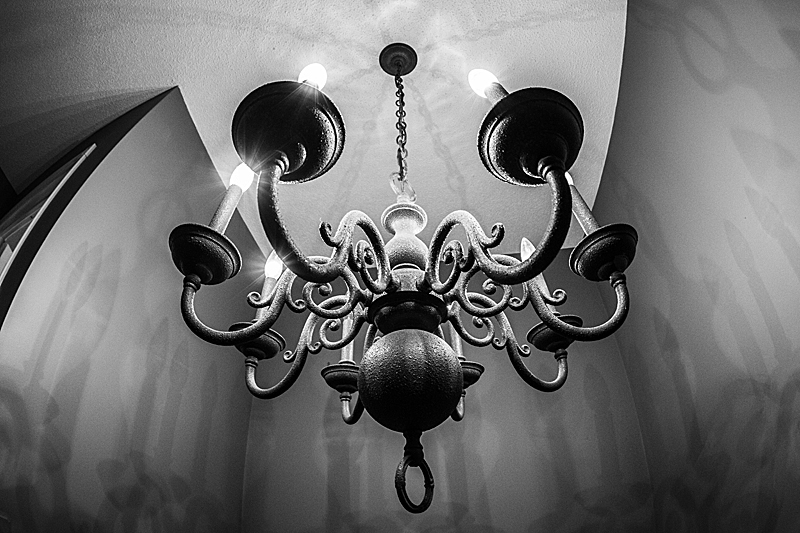
Title: Chandelier and Shadows
Specs: 10mm, 1/60s @ f/5.0, ISO 800
Comment: Fisheye as still-life lens. Oooh, artistic black and white. Very sharp throughout the image, even at f/5.0. I wanted to crank the contrast to bring out the shadow so I ditched colour.
Title: World’s Most Serious Baby
Specs: 15mm, 1/20s @ f/4.0, ISO 1600
Comment: Fisheye as portrait lens. Very little noise even at ISO 1600. A little bit of motion blur at 1/20s, but babies are worse than cats for trying to get them to stay still. The EOS M is not a very fast focusing body, even with USM lenses. A little bit of chromatic aberration on the contrasty edges (like the tops of the curtain in the background), but was totally removed by Adobe Camera Raw. BTW, this lens is not in the Adobe lens correction database. Can’t think why? The old Canon 15mm f/2.8 fisheye is in there as are my EF-M lenses. I think I’ll be manually removing a bit of vignetting but really the lens seems to be very even. Need to do more testing around that.
Title: Roughing It
Specs: 10mm, 6.0s @ f/7.1, ISO 100
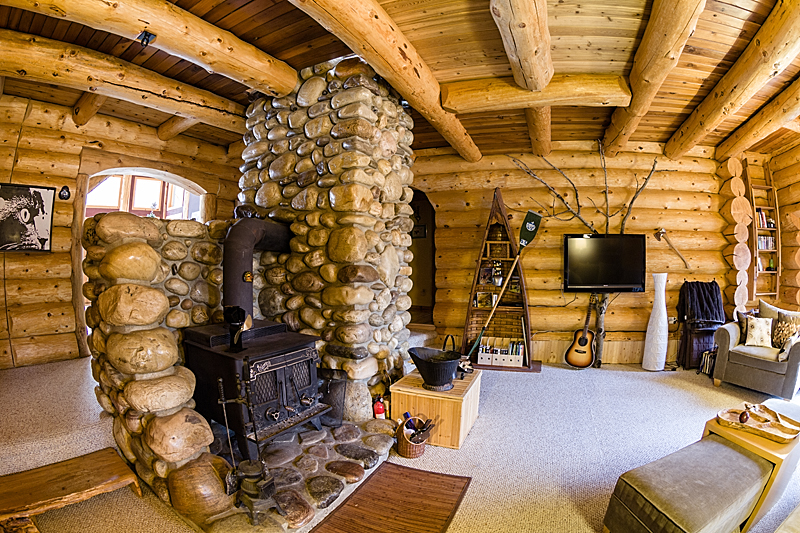
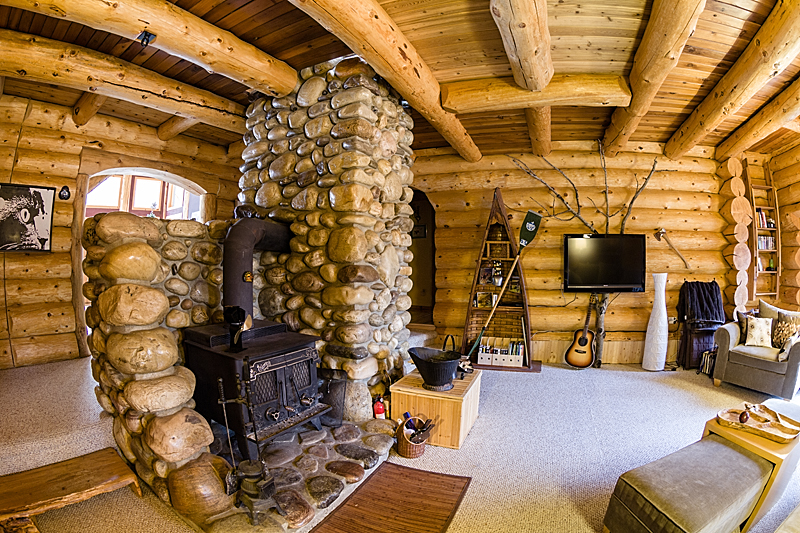
Comment: Fisheye as architectural interiors lens. Go tripod, it’s your birthday. I need one of those hotshoe mounted bubble levels. Getting the lens perfectly level handheld is hard. Easier when you have a tripod with a level. Especially when you want to shoot with a 6 second shutter speed. With the fish-eye, it’s hard to keep light sources out of the shot. I’ve just kind of accepted that there will always be some blown-out elements that I will have to recover in post (thankfully I am getting pretty good at that).
I’ve been testing several calibration tools for correcting digital camera images in a RAW workflow. These tools are designed to help set-up exposure and white balance, create camera and lighting specific colour profiles, and/or automate the processing of image batches.
ColorChecker Passport
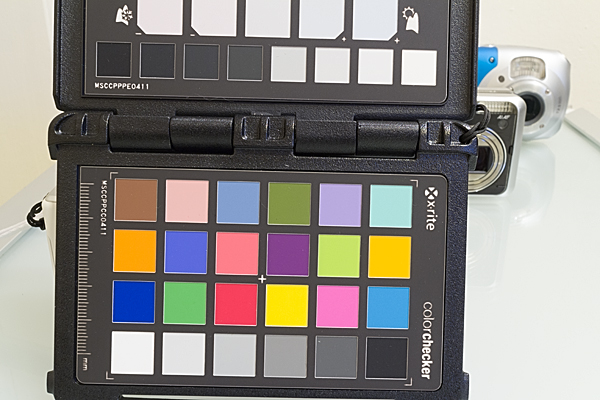
The first tool is the ColorChecker Passport by X-Rite. This ColorChecker Passport is a folding plastic calibration target with three panels: 1) color target, 2) creative adjustment target, 3) neutral white balance target. I won’t go into full details here about how to use the ColorChecker Passport. Check out the X-Rite site for an excellent and straight forward how-to video. I’ll just provide a very quick overview of its functions. The colour target is used in conjunction with the ColorChecker Passport desktop software to create custom camera calibration profiles specific to your camera and lighting conditions. The creative adjustment target allows you to apply warming or cooling adjustments in post-processing. The white balance target helps you create an in-camera custom white balance during your shoot. All the targets are valuable in a RAW workflow. The white balance target is also valuable for a JPEG workflow.
I wish an 18% grey card was included for setting exposure. I know most people use the camera histogram for setting the exposure, but I get the sense that most camera histograms plot what would appear in a processed JPEG, and do not represent all the data available in a RAW file. I could be wrong, but I often find it difficult to evaluate critical whites based solely on the histogram. In my experience a good old 18% grey card gets me the exposure set faster and more accurately.
SpyderCUBE
The second tool is the SpyderCUBE by DataColor. I recently had to upgrade my old Spyder2 monitor calibration hardware as its software is no longer supported as of OS X Lion. I also wanted to upgrade my printer calibration tool so I splurged and purchased DataColor’s SpyderSTUDIO bundle which includes the Spyder4ELITE display calibrator, the SpyderPRINT output calibrator, and the SpyderCUBE camera calibrator, all packaged in an attractive and functional case.
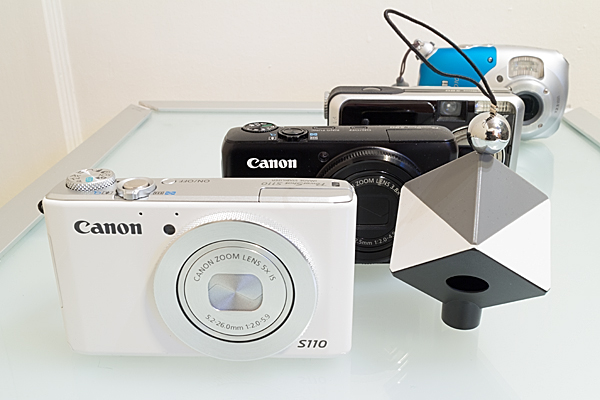
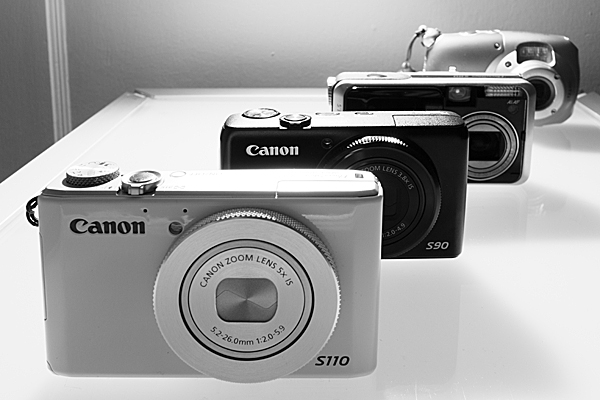
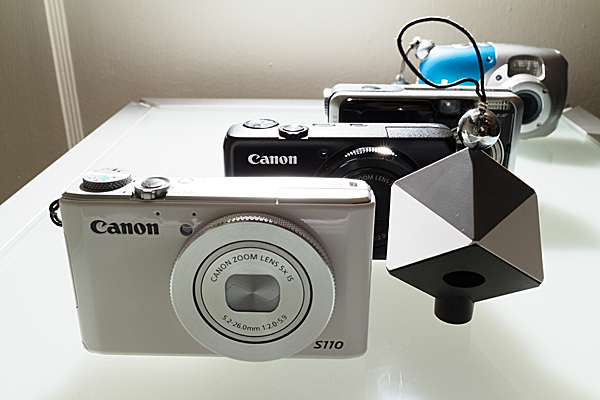
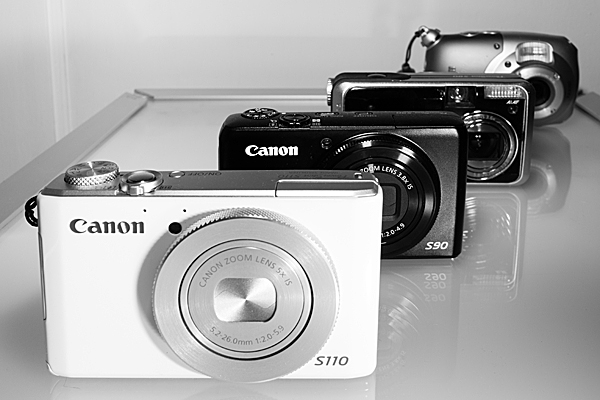
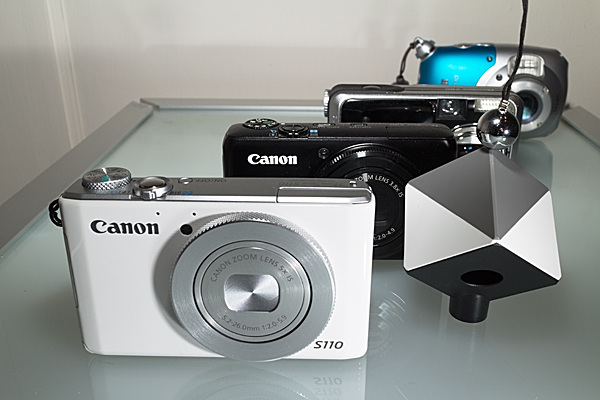
The SpyderCUBE is a small (approximately 2 x 2 x 3 inch) device with the following features: 1) chrome ball for capturing and evaluating specular highlights; 2) two 18% grey facets for evaluating exposure and white balance (most likely in post-production as the facets are practically too small to us in-camera); 3) two white facets for evaluating highlights; 4) black facet for evaluating shadows; 5) black light trap for evaluating the black point; 6) tripod mount and small lanyard which provide options for placing the device in your set-up shots.
DataColor also produce a product called SpyderCHECKR which is similar to the ColorChecker Passport color target and which works with the SpyderCUBE. The ColorChecker Passport is a smaller physical package and provides greater functionality than the SpyderCHECKR. It would be nice to see a side-by-side comparison of the two products to judge the results.
Again, I’ll refer you to the DataColor site for full details on how to use the SpyderCUBE.
The Results
For color correction, there is no doubt that the ColorChecker Passport will give you better results than the SpyderCUBE. However, there are times when the SpyderCUBE will shine and outperform the ColorChecker Passport. In particular, the SyderCUBE seems to handle non-frontal lighting situations better than the ColorChecker Passport. With very strong side-lighting or back-lighting the ColorChecker Passport becomes unusable, but the SpyderCUBE still generates very usable (perhaps essential) information for processing such images. With such dramatic images colour is usually not as critical as modelling, so getting the highlights and shadows right is more important than ensuring subtle and accurate colour rendition.
Both of the devices are compact enough that there is really no excuse not to carry them in your camera bag. At this point, I consider them complimentary and will use one or the other as the situation dictates. I plan to take them with me on a two week journey to Argentina and I’m interested to see how they perform in the field (and with my wife patiently waiting for me to get the shots done so we can go shopping).
All of the samples provided below were processed in Adobe Camera Raw (CS6) with perspective correction applied in Photoshop. ACR lens correction was also applied.
ColorChecker Passport – Soft Frontal Lighting
Canon EOS M, EF-M 22mm ƒ/2 @ f/16, 20 seconds, tungsten lighting, exposure set with 18% grey card
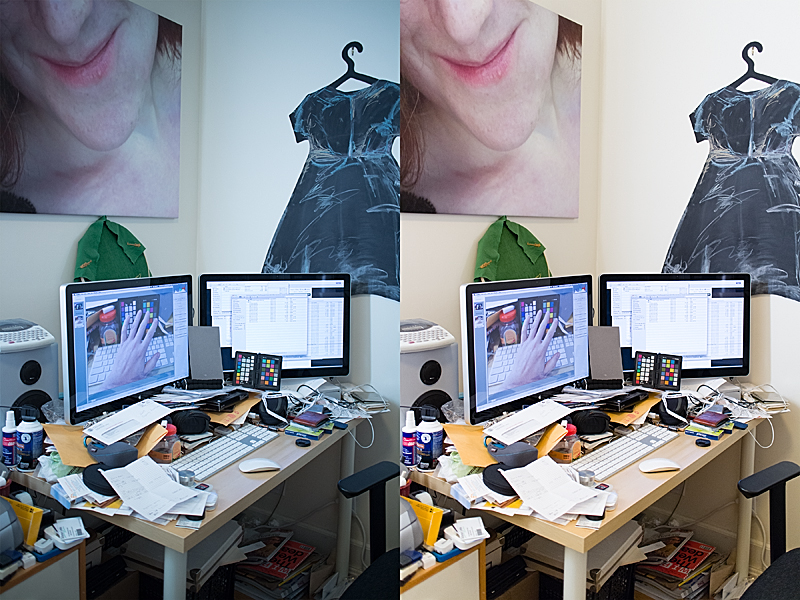
In-camera custom white balance was set using the neutral white balance target, but final white balance was set using the neutral square in the top row seen at the edge of the frame. A custom colour profile was created using the ColorChecker Passport desktop application and applied to the image. White and black points were set to minimize clipping.
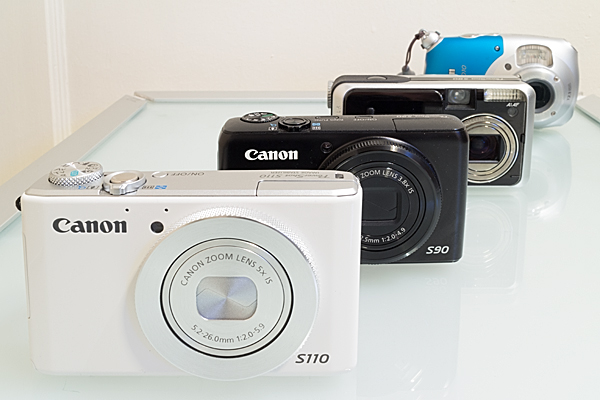
SpyderCUBE – Soft Frontal Lighting
Canon EOS M, EF-M 22mm ƒ/2 @ f/16, 20 seconds, tungsten lighting, exposure set with 18% grey card
Note how the black shadow facet on the bottom of the cube caught a lot of reflected light from the glass table. I used the black camera surfaces to evaluate shadow detail instead. Other dimensions (whites, highlights, white balance) were adjusted as per DataColor’s instructions.
SpyderCUBE – Backlit
Canon EOS M, EF-M 22mm ƒ/2 @ f/11, 1/60 second, dual Canon Speedlights set to ETTL exposure with manual ratio adjustment
All dimensions (whites, highlights, blacks, shadows, white balance) were adjusted as per DataColor’s instructions. Additional curve contrast adjustments were performed after black and white conversion.
SpyderCUBE – Side-lit
Canon EOS M, EF-M 22mm ƒ/2 @ f/11, 1/60 second, dual Canon Speedlights set to ETTL exposure with manual ratio adjustment
All dimensions (whites, highlights, blacks, shadows, white balance) were adjusted as per DataColor’s instructions. A graduated neutral density adjustment was performed to lighten the image from left to right to correct for side-light fall-off (the side Speedlight was quite close to the right edge of the frame). Additional curve contrast adjustments were performed after black and white conversion.
During an after-work conversation (with too much wine I might add) the topic of photography came up. Well, I work for a company that sells stock photography, so this topic wasn’t too surprising.
[pullshow id=”cheap”]
So there we sat, talking about the inconceivable volume of images produced everyday, or every minute; how ubiquitous high-quality digital cameras have become, thanks to smartphones; and how easy it is to share our lives through pictures at any moment, not matter where we are.
It’s hard to comprehend trying to organize the volume of content created today. Our host that evening believed that the majority of what gets recorded is lost in a digital black-hole, never to be seen again. To some extent that might be true, but the internet is doing a damn good job of scaling to the point were [pullthis id=”cheap”]it costs almost nothing to share almost everything[/pullthis]. (For example, it was recently reported that every minute, thirty-five hours of video are uploaded to YouTube.)
The post-camera world
I’m not sure if it was the wine or not, but a thought flashed in to my mind in that moment. Sitting in a room with friends from all over the globe I started fast-forwarding into the future.
[pullshow id=”passive”]
“Extrapolate the current trend,” I exclaimed.
“Extrapolate what has been happening with photography for the past 10 years.”
“Extrapolate what photography is and what it has been doing since it was invented 200 years ago—recording moments in time for others to view.”
“At some point, we won’t take pictures anymore. Our lives will be continuously recorded, archived, and shared.”
I wasn’t scared by this line of thinking. It was pleasing to know that I could, at any moment retrieve the experiences of anyone else and view events as if I was there, and that [pullthis id=”passive”]I wouldn’t have to be selective about what I photographed or even be active in the process[/pullthis]. It would just happen.
So, imagine a world where everything is being photographed or recorded, all the time. Imagine a world where you never really miss any event. Where everything is being shared constantly.
(AS: This entry was originally published as an article on iStockphoto in 2005. At that time, the debate over digital photography vs. film photography was just about over. I wanted to capture my thoughts on the transition and how I saw photography evolving. I think I was spot on when I said the future of photography lay in the “dwindling gaps between you and I”—i.e., photography will be a pervasive part of how we communicate and relate daily on a personal level.)
I attended a discussion panel recently at the Alberta College of Art and Design (ACAD). The event was part of the Exposure 2005 photography month activities. Post-secondary photography educators from four universities and colleges in Alberta and British Columbia discussed the future of photography education with respect to analog and digital photography. The panel and participating audience members touched on several thoughts I have had about the digital revolution. The following essay is a distillation of those ideas.
[pullshow id=”technology”]
Photography has always been closely tied to technology. [pullthis id=”technology”]The reliance of the medium on relatively complicated mechanical devices and physical laws is both a blessing and a curse.[/pullthis] Through photo technology the artist achieves results not traditionally possible with more direct creative methods or simpler tools. Yet, freedom is not complete. The result is constrained by the limitations of the box, a hole through which light is focused, and the recording surface. The possibilities, though vast, are nonetheless finite. There are no purely conceptual photographs or photographers.
We are living in an exciting and turbulent time in which the technology of photography is in rapid transition. Digital image making has all but eclipsed 180 year-old analog processes. How we make photographs, even what we define as a photograph, has changed. Our conception of what photography means to our daily lives, and to our future, is in flux.
The obvious diametric comparisons of digital versus film are inconsequential. Questions which we can pose about the nature of photography Now are much more exciting. Rarely is a society afforded the opportunity to see change coming and to analyze its affect as it happens. The sheer number of images produced each day by digital means is staggering to some. Consider the countless frames of video and surveillance also recorded each day and the awesome quantity of produced images becomes almost unfathomable. Photographs have ceased to be objects and have become information.
Concerns of quality versus quantity obviously arise. Has the proliferation of digital photography resulted in an overall reduction of aesthetic quality? Unequivocally, the answer is yes. Yet, consider the heated debates about the quality of 35 mm photography at the time of its introduction. A new kind of accessible and portable photography was born. Digital imaging continues to democratize photography. So, is this (temporary) loss of quality bad for the art? I say no. Quantity is the new quality. More is the new aesthetic.
More than one photographer, on contemplating the transition from analog to digital, has remarked that with a sparse number of frames loaded in a film camera they tend to work slower. They think more before they release the shutter. Along with ideas and concepts, the act of taking the photo, and then later painstakingly crafting a print, drives the process. The work is in the front end.
Working with a digital camera is a different experience. Not from a technical or mechanical perspective (though this may be true too) but from the point-of-view of the process. Look, shoot, review, delete, repeat. Working digitally does not have to be like this, but inevitably it is. Likely more time is spent correcting, editing, cataloguing, and publishing than is spent shooting. With digital the work is in the back end.
Once created, the digital image leads a much more dynamic life. In the wild it will be copied and transmitted electronically, and be viewed by numerous individuals across the globe. The result of the digital image’s ubiquity is that we as individuals and as a society are becoming more visually literate. With digital photography, being able to read the image is more important (and more challenging) than being able to create the image.
[pullshow id=”literacy”]
Direct comparisons between analog and digital should be avoided lest we widen the gap between the two camps. Yet change is upon us and the aforementioned differences between analog and digital are exactly the reason for that change. In the past—in the analog world—visual literacy meant being able to read one image, being able to decipher its signs and symbols in order to derive meaning from various dyes and crystals on paper. In today’s digital world, with the multitude of images continuously created, transmitted, and then all but forgotten, [pullthis id=”literacy”]visual literacy is about seeing patterns in the pixels, dots and bytes of many images at once or over time[/pullthis]. Meaning and quality lie in understanding the effect of seeing tens of thousands of images each day and in decipher the mass of information.
Analog will never completely disappear. The analog aesthetic will go in and out of style. Photography historians will analyze the evolution of the medium ad naseum. Photographers will meditate over their art, film camera in hand, finger hovering over the shutter button, waiting.
And digital will be the future—at least until the next revolution. Soon the prevalence of the digital image will make the medium so common place that it will cease to impress. Innovation will falter. Photography will degenerate into a baroque display of surface and illusion. The next revolution won’t be flat. It will be about space—not the frontiers of the heavens, but the dwindling gaps between you and I. The next revolution will be multi-dimensional—architectural. Digital photography’s current popularity is a signal that it will inevitably be in decline—perhaps soon. But that is another discussion.


















 Springer Photo Graphics